
When ever X-plane starts running slowly/stutters/jerks or generally misbehaves, the first thing to do is to disable any unused/outdated plugins.
There are two ways to do this:
The first method is to go to the Plugins pull-down menu, and click the “Show Plugin Admin” option. This brings up a list of installed plugins and gives you an idea of how many resources they are consuming.
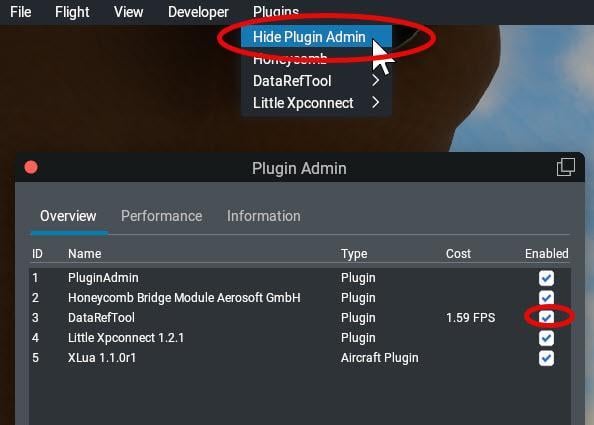
Click the “Enabled” checkbox to enable or disable that plugin.
The second method is to completely remove all traces of that plugin by deleting the folder containing the plugin (individual plugin folders are found in the …X-Plane 12/Resources/plugins folder). If you don’t want to delete the plugin because you may want to activate it again, simply move the plugin’s folder to a location outside of the X-Plane 12 folder (like, for example, to the desktop).
Sometimes simply disabling the plugin using the Plugin Admin window is not enough as it still leaves the plugin in the plugin folder and – depending how the plugin is written – this may still have some residual effect. So to be sure that the plugin has no effect, delete or move it. To ensure that the plugin does not start gain the next time X-Plane is started, it needs to be deleted or moved out of the plugins folder.
Note: X-Plane does not use the Windows registry so simply moving the plugin elsewhere outside the X-Plane 12 hierarchy of folders without deleting it will remove its effect entirely.