Posted on

Instructor Station on a Second Monitor

If you have a second monitor available and your graphics card can handle it, connect it to your X-plane computer and configure the settings so that one monitor is your main monitor and the other is the instructor station. This has some really useful advantages. Here are just two of them – you’ll discover lots more advantages if you play around with the instructor station:

  • You get a moving map display of your aircraft’s location
  • The aircraft that you are flying can be changed mid flight without being forced to start  a new flight
  • You can change your aircraft’s position by clicking the aircraft icon and then dragging across the moving map while watching your progress as you drag the icon in the other main monitor.

You set it up by going to Settings – Graphics and changing MONITOR1 from Unused to Instructor Operating Station

Instructor Station settingsjpg.jpg

The instructor Station monitor then looks like this:

Instructor Station panel.jpg
Posted on

Smoother Display, Less Stutters

As you fly in X-Plane 12 your frame rate is continually changing depending on the current graphic load. If you have a high-end graphics adapter and CPU, or if you tend to fly in country scenic areas far from big cities, you may find that you are “wasting” frames but are still subjected to slight stuttering.

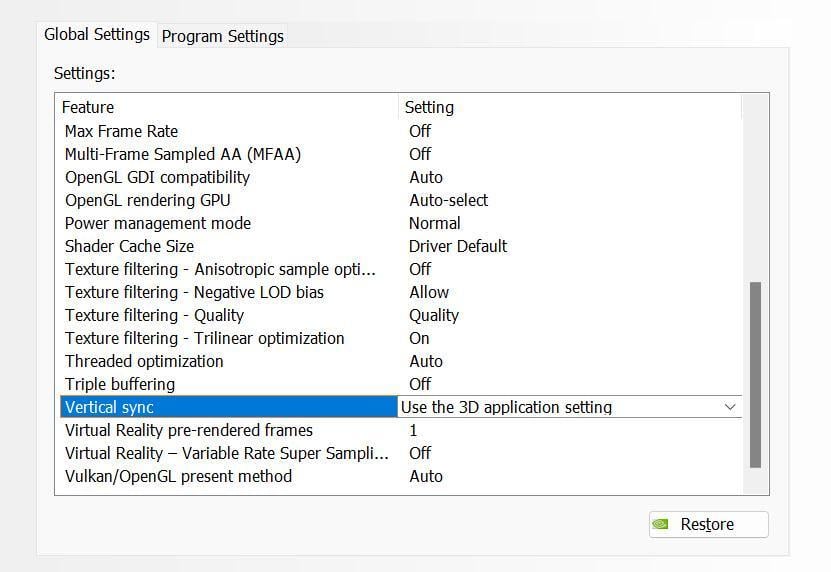
The VSYNC setting can help. Vsync, short for monitor vertical synchronisation, is a setting in X-Plane that helps smooth out visuals. It works by matching the frames your computer generates (frame rate) with the rate your monitor refreshes the image (refresh rate). The NVIDIA driver also has a Vsync setting which accomplishes more or less the same thing. However, they don’t work together, so first instruct the Nvidia Driver to “Use the 3D application setting” :

image.jpeg

Then tick the Vsync checkbox (located at the bottom of the X-Plane Graphics Settings screen):

image.jpeg

Before using this tweak, make sure that Windows has correctly identified your monitor and has applied the maximum frame rate.
If you have low-end hardware, you may find that the penalty for using VSYNC is a slight slowdown of X-Plane. There should be little or no penalty for high-end equipment.

Try this out and see if it helps. If the result is worse, you can always uncheck the Vsync box.

For an explanation of how Vsync works with X-Plane click here

Posted on

Lost ATC window

Sometimes when the ENTER key is pressed to bring up the ATC window, it does not appear. It seems to be off screen. This frequently happens after a multi-monitor reconfiguration, resolution change, or display layout tweak.
The easiest way to force it back to the primary display is to clear or reset the stored window position preferences.
X-Plane saves dialog and popup coordinates in specific preference files. Deleting or renaming them forces X-Plane to recreate them with default, on-screen coordinates without wiping out your aircraft or controller profiles.

Quit X-Plane 12 completely.

Open File Explorer and navigate to your X-Plane 12 folder. (For example : C:\X-Plane 12)

Click the Output sub-folder, then open preferences (…\X-Plane 12\Output\preferences). Locate the following files (you’ll see one or both):

X-Plane Window Positions.prf
X-Plane Screen Res.prf

Rename them to

X-Plane Window Positions.prf.bak
X-Plane Screen Res.prf.bak

or simply move them to your desktop as a backup.

Restart X-Plane 12 and fresh preference files will be generated, pulling the ATC window to it’s default default position on the main screen.