
Posted on

Older Versions of X-Plane

Sometimes we look through our collection of old but superb payware or freeware aircraft and would like to fly them again, but they are incompatible with X-Plane 12.
For example, did you ever get the sudden yearning to fly the DC6 from PDMG that was not ported over to X-Plane 12? It sure cost a bundle of money!

All is not lost… Did you know that you can download earlier versions of X-Plane and install them on the same computer as your X-Plane 12 installation. The different X-pane installations are completely separate and will happily co-exist on your computer, not affecting each other at all. You can install the demo versions of X-Plane 11, X-Plane 10 and even X-Plane 9. If you still have your X-Plane license key you can happily activate them as well. Click here to go to the download page for old versions
Posted on

Ever heard of the “bird” or Velocity vector in the Heads-Up Display?

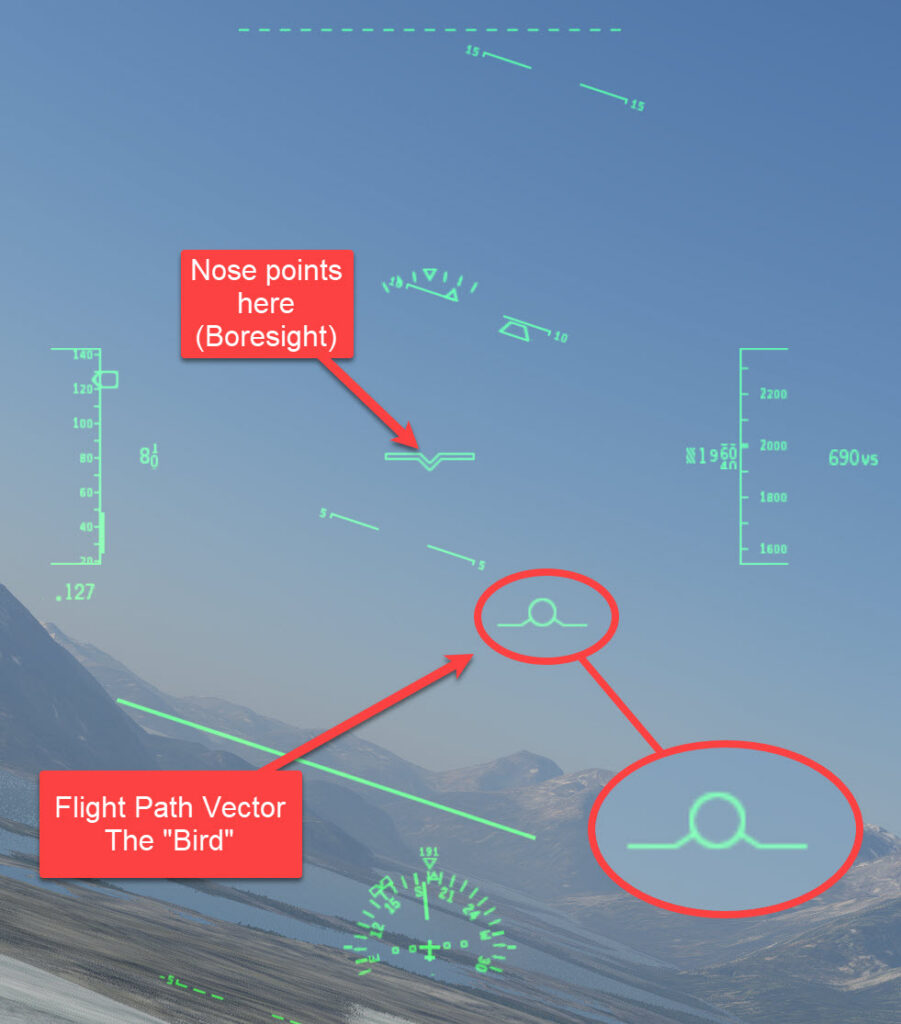
Did you know that in the HUD (Heads Up Display) of most aircraft in X-Plane there is a tool that helps you to visually align your aircraft to the the runway touchdown point when you have a crosswind messing you around.

The Velocity Vector (often referred to as the Flight Path Vector or FPV, and represented on the HUD as a small circle with tiny wings, sometimes called the “bird”) is one of the most powerful instruments on a HUD in X-Plane.

Instead of showing where the aircraft’s nose is pointing (pitch and yaw), the velocity vector shows where the aircraft is actually physically moving relative to the outside world.

If there is a crosswind from the left, the velocity vector will be displaced to the right of the aircraft’s centerline/boresight cross.

To fly a precise ground track, you keep the velocity vector locked onto the desired meridian or runway extended centerline, rather than the nose symbol.

Posted on

No more “Open Checklist” in X-Plane file menu

Did you notice that there is no more “Open Checklist” in the File menu drop-down of X-Plane12? I didn’t even notice when it was actually removed. True, it was a little limited, but for those who want to keep their installations “plugin free” that option just isn’t there anymore.

However, having stated the bad news, all is not lost. I presume one of the reasons for the removal is that there is a very good – very stable – absolutely no trouble – freeware – plugin available called XChecklist created by @sparker . If you have never seen this plugin, download it and try it out. There are many, many checklists published on this forum which are compatible with X-Checklist, so you are are bound to find one for your favourite aircraft. In fact, it is very easy to create your own checklist with nothing more than a humble text editor.

The plugin will work on Windows, Mac and Linux. And the good news is that it is far more capable than the original Laminar checklist.

Posted on

Ground speed fine control – Speedup the sumulation

Although no longer available from the pull-down menus, using the key combination [ALT]+[T] will double your ground speed, effectively relieving the tedium of a long flight.
[ALT]+[T] again will quadruple your ground speed,
[ALT]+[T] again will increase your ground speed 8x,
[ALT]+[T] again will increase your ground speed 16x,
[ALT]+[T] again will bring your speed back to normal (1x)

Did you know, however, that if you open the instructor station (press [I] or click “Show IOS” from the Flight pull-down menu), there is an analog(ue) ground speed slider. This slider allows you to reduce or increase ground speed without having to cycle through the higher speed levels to get back to 1x. It only goes as high as 6x but you can set any speed you like between 0x and 6x. It is particularly useful if you want to slow your ground speed below 1x or increase ground speed only slightly like 1.5x

Posted on

Finding the Taxi Arrows

When you are parked at a gate, you often cannot see the Taxi Route Arrows once ATC gives you permission to Taxi.

image.jpeg

Your first assumption is that there is no taxi-arrow indication available for this airport. However, that is very unlikely. Instead, you may well find that the arrows are behind you or obscured or too far away to see. The solution is to go into Free Camera mode by pressing the image.jpegkey and then use the arrow keys to rise right out of the cockpit and then look around:
image.jpeg

Here we find the arrows pointing back behind the aircraft.

Posted on

Alpha and Beta on a Turboprop Aircraft

When flying a turboprop aircraft like the insanely high-powered Lancair Evolution, in order to taxi effectively you will need to use the power lever (throttle) in sometimes in Alpha and sometimes in Beta thrust ranges.

Alpha range controls a variable prop pitch and is used in normal flight and straight-line taxiing, while Beta range is a prop pitch that is so fine that the propeller has far less effect on forward thrust and is used when using toe brakes to turn. They are both ranges of pitch.

To understand more about what Alpha and Beta power ranges are, go to this thread where @philipp , @SteveDe and @skycycle explain this in much more detail on the X-Plane.org forum.

Posted on

Add-on Aircraft doesn’t work properly

Troubleshooting tip – may or may not help:

Sometimes, a 3rd-party add-on aircraft just does not seem to work properly or initialize correctly.

A workaround is first to load up the Default Cessna 172, then, once it is loaded, from the pull-down menu, click Flight –> Flight Configuration and change your aircraft to your 3rd-party aircraft.

Reason this sometimes works:

Sometimes X-Plane needs to be initialized with a default aircraft first. This is an old tip, but it sometimes applies even with X-Plane 12 – compatible add-on aircraft or mods.

Posted on

The “misbehaving” Right-Drag button

To right-drag in the X-Plane view [ Press and hold the right mouse button ][ Move the mouse ] is much more convenient than using the keyboard or the HAT switch on a controller.

However, be aware of two quirks. If you have a sensitive right mouse button you may find yourself locked into a continuous panning effect even when the button is released and you merely move the mouse.
This is caused by a double-right-click. This is great if you want the constant panning effect, but disturbing if it is unexpected. To cancel this constant panning, make a single right-click. (Left clicking has no effect).

The other effect occurs when you start a right-drag with the cursor touching the left or right edge of the monitor. You will find that you can pan away from that side but if you pan back you can pan only as far as that edge, whereupon the panning refuses to pan further in that direction. The solution, of course, is to start a right-drag with the cursor anywhere except flush up to a side edge. Then your panning is unrestricted.

Posted on

Entering a Flight Plan while Paused

Here’s a tip that I learned through bitter experience.

When entering a flight plan into the default G1000 (or even the G530), do NOT pause the simulation while manually entering the way-points or procedures. While it appears to work fine if you enter the fields while paused, occasionally (but not always) the GPS gets confused and corrupts the visual display – sending tracks between way-points to Timbuktu and back! It is not only the graphical map display. The flight plan itself gets corrupted even if the listing looks OK in the MFD.

I don’t think this is a bug since it is logical to assume that a bit of processing goes on in the background when calculating the GPS display. If X-Plane is paused, presumably whatever processing it is doing does not happen.  I am not sure whether this has always been a problem or only in recent versions. Certainly the problem is in X-Plane 12.11.

So learn from someone who spent an entire day tearing his hair out in frustration – DO NOT PAUSE X-PLANE WHILE ENTERING A FLIGHT PLAN! 😤
Provided X-Plane is un-paused, entering the exact same flight-plan works perfectly.

If time runs away with you because it took so long to enter the flight-plan, reset back to an earlier time once the flight plan has been entered and saved.

Posted on

Check the fuel when restoring a flight

Whenever you reload a saved flight or resume the last flight, always check the fuel quantity that has been loaded.
For example if you make a flight with the default Laminar B737 and save the flight, when you reload the saved flight again, X-Plane 12 seems to reset the fuel to a default amount and does not save the actual fuel remaining when you saved the flight.

This is not consistent between the default aircraft, so always as a matter of proper planning, check the fuel load as part of the pre-fight preparations – don’t assume that the fuel loaded between flights will remain the same even if you did not even start the engines.