Posted on

“A.I. Flies Your Aircraft” can be much more than just a movie

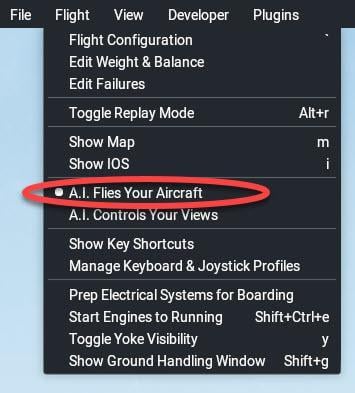
You can allow the AI system to fly your aircraft by clicking A.I. Flies Your Aircraft from the Flight drop-down menu and watch the A.I. fly the aircraft without any input from you. But there is much more to this than you might think.

If you begin your flight with “Start with engines running ” unchecked (You start from “cold and dark”) and then instruct A.I. to fly your aircraft: 

image.jpeg

After a while A.I “wakes up” – this happens almost immediately at small airstrips and can take quite a while at large airports.

You can then watch the cockpit settings change, knobs move, switches click, ATC initiates a conversation, and your flight begins.

You may be a spectator, but you can learn a lot about ATC, taxi speeds, flap settings, etc. You can pan around, zoom in on different settings, hop outside, or look closely at the ATC conversation. 

The other useful thing about having AI fly your aircraft is that it can give you an idea of how well your system is performing and whether the AI pilot encounters the same problems as you. 

Watch how AI handles the take-off run. Can you keep the aircraft from veering across the runway like the AI pilot can? This will give you a yardstick to aim for. 

In addition, since A.I. does not use your peripherals but the X-Plane engine itself, if you just cannot control the aircraft as well as A.I. does, it can give you a hardware fault-finding clue. Maybe your rudder pedals need attention or need to be calibrated. Maybe your sensitivities need adjustment (See this post). Maybe your throttles are not traversing their full extent…

image.jpeg
Posted on

Official X-Plane Documentation

The official documentation for X-Plane 12  is scattered around local locations and web locations.

Local:

In the main C:\X-Plane 12 folder there is a sub-folder Instructions. Inside that, there is an .html file containing the:
• X-Plane 12 off-line manual,
• Plane Maker manual and
• Airfoil Maker manual.
In addition there are .pdf files for the
Garmin G530,
G430,
G1000,
ATC Manual
as well as several other documents.

You will also find some documentation in some (not all) of the …\Aircraft\Laminar Research folders.

On-Line:

The on-line X-Plane 12 manual

Navigation & autopilot manuals

individual aircraft Pilot Operating Handbooks

X-Plane 12 blog

Facebook – X-Plane by Laminar Research

X-Plane 12 Customer Support and Bug Reporting

X-Plane 12 Release notes

X-Plane 12 Troubleshooting

X-Plane Developer Blog

X-Plane Developer – Aircraft Development Documentation

X-Plane Developer – Scenery Development Documentation

X-Plane Developer – X-Plane SDK Documentation

Posted on

F13 – F24

Some shortcuts are programmed using the phantom keys F13 to F24, which, of course, don’t exist on most keyboards.

We access them by using the Shift Key as follows:

F13 is accessed by pressing image.jpegimage.jpeg

F14 is accessed by pressing image.jpegimage.jpeg

F15 is accessed by pressing image.jpegimage.jpeg

F16 is accessed by pressing image.jpegimage.jpeg

F17 is accessed by pressing image.jpegimage.jpeg

F18 is accessed by pressing image.jpegimage.jpeg

F19 is accessed by pressing image.jpegimage.jpeg

F20 is accessed by pressing image.jpegimage.jpeg

F21 is accessed by pressing image.jpegimage.jpeg

F22 is accessed by pressing image.jpegimage.jpeg

F23 is accessed by pressing image.jpegimage.jpeg

F24 is accessed by pressing image.jpegimage.jpeg

Posted on

“Half” Start with Engines Running

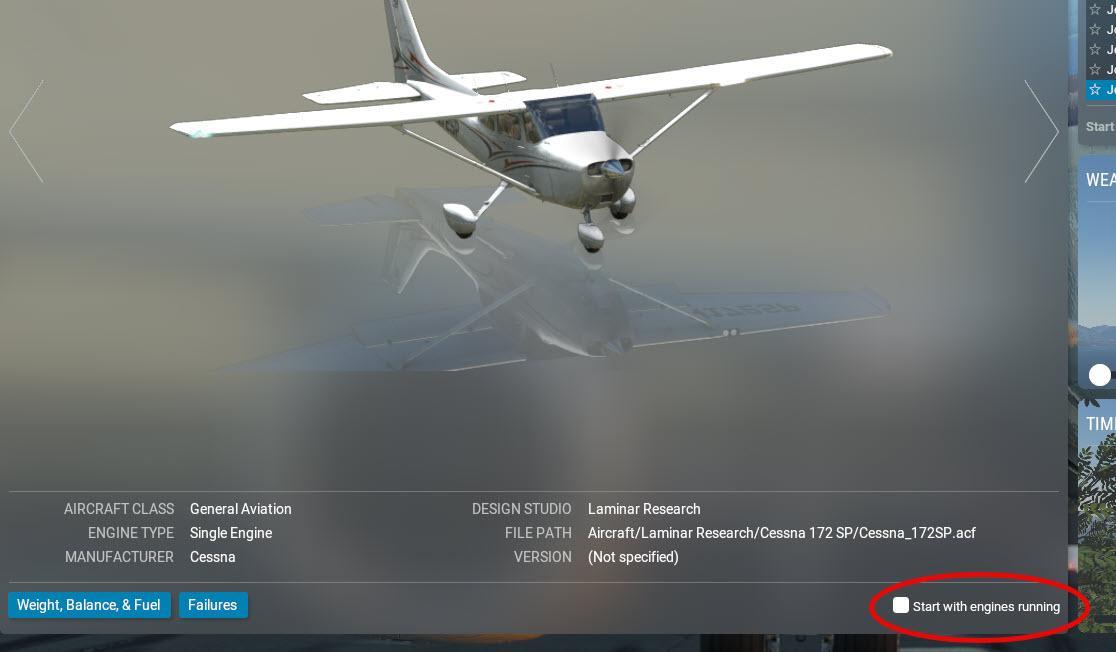
Serious pilots usually always start a “full” flight from a cold and dark state by keeping this box unchecked:

image.jpeg

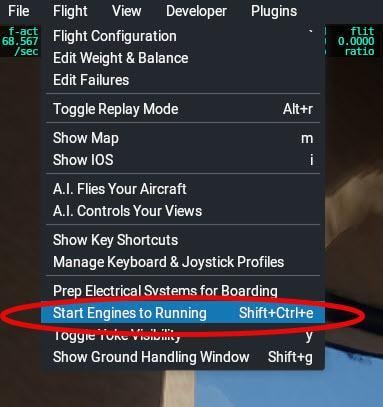
However, did you know that you can accelerate your start procedure by clicking the pull-down option “Prep Electrical Systems for Boarding”. 

This has the effect of instantly setting up the initial electrical systems: avionics, transponder standby, lights etc.  
This is the full list :

– battery on
– generator off
– inverter on (for planes that have it)
– cross tie switch on (for planes that have it)
– avionics power on
– transponder standby
– gnd service bus off
– nav and beacon lights on
– landing and taxi lights off

If you then get impatient and want to start into an “Engines Running” state, the next pull-down option enables the full “cheat”:

image.jpeg

The keyboard shortcut for starting all the engines to running is image.jpegimage.jpegimage.jpeg
This can be used even when your flight has already begun in “Cold and Dark” mode.

Posted on

Mastering the Dreaded Curved Arrow Switch pop-up

Most users new to X-Plane often have difficulty physically manipulating switches. That curved pop-up arrow never seems to work the way you think it should. It’s actually very simple once you understand it.

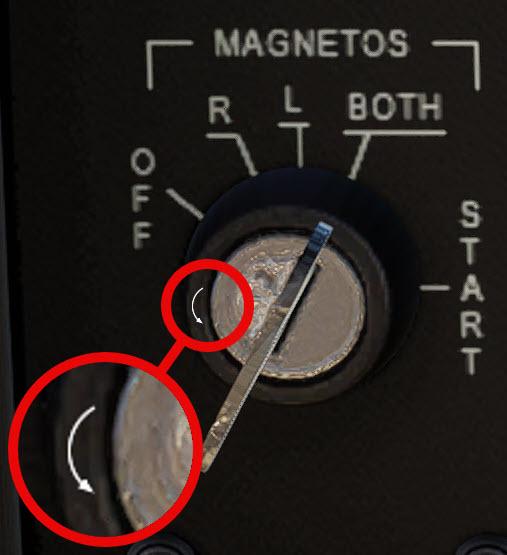
Let’s take an example of the magneto switch. It is moved anti-clockwise towards the off position by when the Curved white arrow appears. But how?

image.jpeg


• Move the mouse over the key-switch until either a clockwise or an anticlockwise curved arrow appears.
• Then, click the mouse or roll the mouse wheel while the curved arrow is visible.

Light switches are turned off by clicking when the white arrow appears and points downwards.

Rocker switches are turned off when you click as the white arrow points down when the cursor is moved over the lower part of the rocker.

Posted on

Wind directions are sometimes quoted as True and sometimes Magnetic

BE AWARE:

When you enter wind directions above ground level into the weather Settings of the Flight Configuration of the X-Plane setup routine, it is always entered as a TRUE direction (with Respect to TRUE North):

image.jpeg

But when you enter wind directions at ground level, it is always entered as a MAGNETIC direction (with Respect to TRUE North):

image.jpeg

This is not X-Plane being inconsistent. instead X-plane follows the useful old adage that “If you read it, it must be true. If you hear it, it’s magnetic.”
Wind directions on a map or in a METAR are with reference to TRUE North.
But wind directions given by ATIS are with reference to the MAGNETIC North Pole.

Wind Direction Jargon

Did you know that the wind direction is quoted as the direction from whence it comes. In other words:

  • If a wind is blowing from due East to due West (right to left if you are facing North), the wind direction is 90°.
  • If the wind is called a SouthEaster it means it is coming from the South-East and has a direction of 135°
  • If the wind blows from South to North, it is a 180° wind.

It is important to realize this when entering a custom wind direction into the X-Plane Weather Customization window.

Posted on

Resume Flight vs Load Flight

If you save your flight (as a situation) while still flying, then quit X-Plane, when you press the RESUME LAST FLIGHT icon at the main menu, you might be surprised to find that X-plane will not behave quite as you might expect.

X-plane will NOT put you back in the sky where you were. Instead, when X-Plane loads you will be placed on the ground at the nearest airstrip to where you were when you quit X-Plane. 

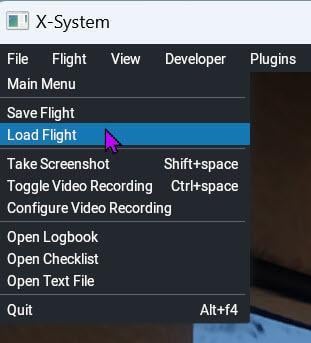
To actually resume your flight (where you were in the air), you need to Load the Flight from the File drop-down menu:

image.jpeg

Now you will be placed back where you were when you saved the flight.

Please note that not everything is actually saved (like replays or custom datarefs), particularly if you are flying a complex add-on aircraft.

Posted on

An Unusual Source of useful Information

Whenever you purchase a new aircraft or scenery package, search for a review of it. 
Why? You have already bought it so why would you need a review?
The reason is quite astonishing… 

There is often far more useful information about the add-on in one of those reviews than there is in the official manual that the author supplies. Particularly in the case of airport payware. When a good manual is provided, reviews often supplement it with an abundance of information presented in a readily understandable format.
Those good people who write reviews must have some sort of magic power – they obviously don’t need any sleep! I am constantly astonished at how much work goes into one of these reviews. 

Don’t miss out.

The biggest X-Plane review site is found at X-PlaneReviews

Another good one is X-Plained