Posted on

Brakes, Chocks and Aircraft that refuse to Taxi

There have been a number of changes to the way brakes are applied and released.

  • If the brakes are released and the aircraft still won’t move, check the chocks in the ground handling menu.
  • The “V” key (maximum brake effort) works differently. You can no loner release brakes by using V as a toggle.
  • The “B” key works in some aircraft and not in others (try it in the Cirrus for example)
  • The “B” key has different strengths in different aircraft.
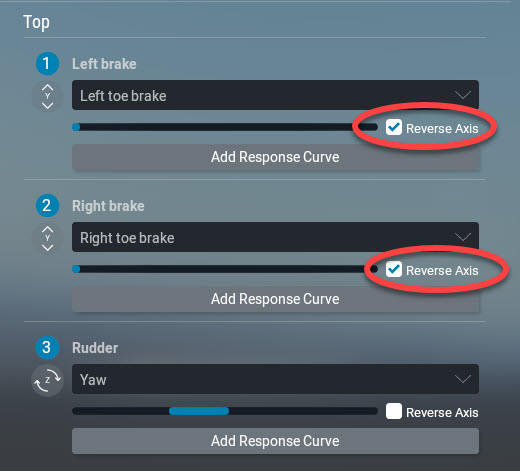
  • And of course the granddaddy of all handbrake confusion – check that your pedals are not set to “full brakes” when released. (To fix, swap the brake axis assignments by ticking or unticking the “Reverse axis” checkbox in the AXES section of the Joystick Settings menu).

And the BEST TIP OF ALL:

– Set the Data Output “Gear & brakes” (#14) to display on the screen. Then you can see what is working and at what strength (from 0.0 to 1.0).

The easiest way to see “whats going on” is to use the Data Output functionality and display “gear&brakes”, this will show you the ratio of brake application from 0.0 to 1.0.

Posted on

If you are running short of ssd space…

A full X-Plane 12 installation with all scenery areas eats up over 93GB of SSD space. 60GB of that is taken up by global scenery, divided up into less than 20 distinct areas. In the past, there were only a few larger scenery areas, but recently Laminar Research has divided many of these areas into smaller selectable areas to help you only install what areas you need.

You can also install a large area of scenery and then remove individual tiles at will. TRhat way you can wind up with just the scenery you need. All other areas where you have not downloaded global scenery will just display a lot of water as if there had been a huge flood.

Posted on

Start X-Plane a little faster

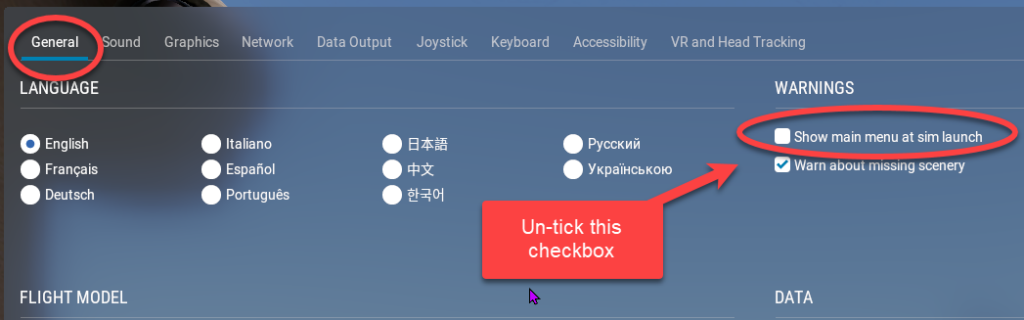
When you simply want to quickly get going again where you left off, there is an option on the Settings –> General page, strangely located under the WARNINGS section, to un-tick the “Show main menu at sim launch” checkbox. This completely bypasses the main menu and automatically launches X-Plane with the RESUME LAST FLIGHT option.

To get the main menu to show again, simply click the drop-down settings icon in the top right corner of the X-Plane Screen:

Posted on

Increase the throttle but the aircraft won’t move

I came across this problem with a new X-Plane install.

The Scenario:

A virginal installation. Joysticks calibrated.

  1. First flight in the default Cessna C172.
  2. Release handbrake,
  3. Add 70% throttle.
  4. Prop spins up.
  5. Audio changes to take off growl. 

The Problem:

The aircraft does not move. 

 Unsuccessful fix attempts:

  • Press image.gif once. Nope. Press the key again. No change.
  • Check if any command with the word “brake” in it is associated with any hardware switch
  • Click the handbrake image to release it. No change.
  • Restart flight. Same story – aircraft won’t move

The solution:

Sometimes the pedals axes are reversed in a new installation.

Go to the Option: Settings –> joystick –> pedals device and Click the “Reverse  Axis” checkbox for each pedal .

Check out this tip containing 7 tips about a stubborn stuck handbrake

Posted on

True Airspeed and Groundspeed Indicator

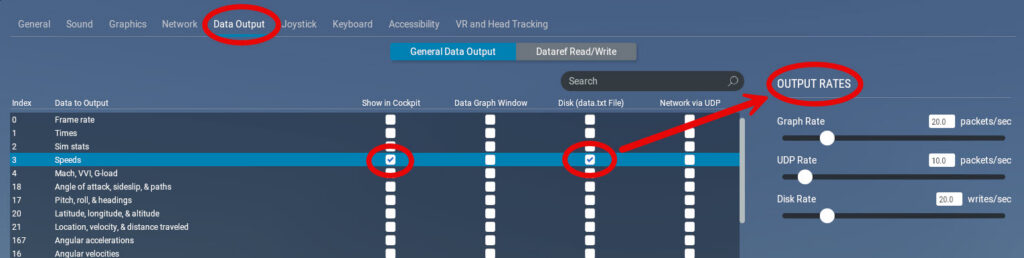
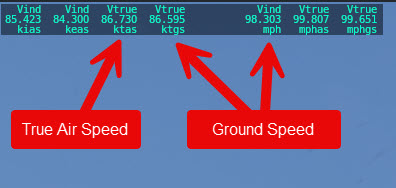
Did you know that hidden in the Speeds option of the data display, you get a table which not only shows your IAS [Indicated Air Speed] and TAS [True Air Speed], but also shows a GS [Ground Speed] indicator as well. Both in knots and mph.

In the Settings –> Data Output screen, you can also click the Disk (data.txt file) checkbox and a series of speeds gets written to a txt file. You can even set the time increment between each recorded data point.

Here’s a link to a useful Wikipedia article explaining what airspeed actually is: