
Posted on

Finding the Taxi Arrows

When you are parked at a gate, you often cannot see the Taxi Route Arrows once ATC gives you permission to Taxi.
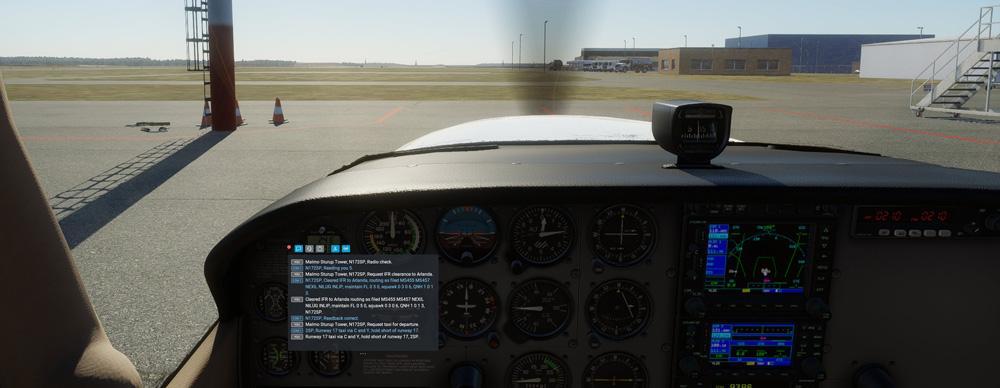
image.jpeg

Your first assumption is that there is no taxi-arrow indication available for this airport. However, that is very unlikely. Instead, you may well find that the arrows are behind you or obscured or too far away to see. The solution is to go into Free Camera mode by pressing the image.jpegkey and then use the arrow keys to rise right out of the cockpit and then look around:
image.jpeg

Here we find the arrows pointing back behind the aircraft.
Posted on

When ATC makes no sense…

Did you know that when ATC give you weird instructions, you can actually discover what it has in mind.

Click the menu: Developer –> Toggle Air Traffic Paths. Now, to see what ATC has in mind, bring up the map view window [M] and you’ll see a green line representing the track that ATC wants you to follow.

This “map confirmation” of ATC intentions goes a long way toward re-assuring us that ATC has not forgotten all about us.

Posted on

Alpha and Beta on a Turboprop Aircraft

When flying a turboprop aircraft like the insanely high-powered Lancair Evolution, in order to taxi effectively you will need to use the power lever (throttle) in sometimes in Alpha and sometimes in Beta thrust ranges.

Alpha range controls a variable prop pitch and is used in normal flight and straight-line taxiing, while Beta range is a prop pitch that is so fine that the propeller has far less effect on forward thrust and is used when using toe brakes to turn. They are both ranges of pitch.

To understand more about what Alpha and Beta power ranges are, go to this thread where @philipp , @SteveDe and @skycycle explain this in much more detail on the X-Plane.org forum.

Posted on

Using PAPI/ASI lights or Runway Aiming Points

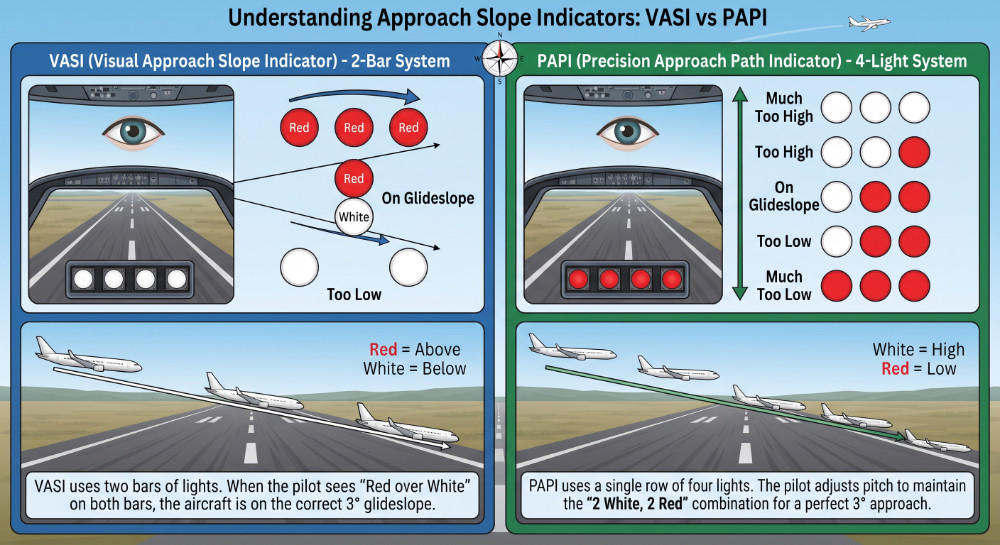
Since most airports in X-Plane are fitted with fully functional PAPI or VASI lights, the question arises whether it is better to use them or rather use the runway aiming points. Here is a very simple, concise, but beautifully illustrated article on the Boldmethod site (aimed at real-world pilots) that is well worth the 5-minute read. Click here.

Posted on

Including Orthophotos in Airports

There is much confusion about how to use orthophotos when creating airports in WED. Here is a “long forgotten” YouTube video created by Laminar Research’s WED Guru Michael Minnhaar aka @triplemon . The video shows scenery creators the right way to do it. While the tutorial video is 4 years old and created for X-Plane 11, the information in it is still quite valid:

Turn up the volume – the soundtrack is a bit quiet.

Posted on

Can your hardware run X-Plane 12 properly?

Here are the official minimum and recommended official hardware requirements.

Take the minimum requirements with a pinch of salt. “Minimum” does not mean “usable”. In my opinion ( with 30 years of hardware support experience to back me up) the “Recommended Hardware requirements” should really be the Minimum hardware requirements for a decent X-Plane 12 experience.

But what if you don’t know how your CPU or Graphics Card stacks up?

How it compares to the specified :

CPU: Intel Core intel i5-12600K or Ryzen 5 3500 or better, or Apple Silicon

or 

Video Card: a DirectX 12-capable video card from NVIDIA or AMD with at least 8 GB VRAM (GeForce RTX 3070 or better, or similar from AMD, or Intel Arc B580)

Go to CPU Benchmark and check where your hardware compares in the “pecking order”. When you are looking at CPU’s you want to look at the Single Thread CPU chart.

Posted on

Windows Performance tip

Don’t do this if your X-plane machine is also your general home/office machine.

This works both for Windows 10 or Windows 11.

The most effective Windows performance tip: Turn off Windows indexing.

Windows is constantly indexing new folders and can suddenly start doing this while you are flying. If you are using your PC exclusively for X-Plane or gaming, turn this indexing service off.

In the search box type  Services and scroll down to Windows Search:

image.jpeg

If it shows the word Running in the status column, click that line and click Stop the service:

image.jpeg

Restart the PC and go back to the Services list and check that it is blank in the Status column and that Manual appears in the Startup Type column.

Posted on

X-Plane crashing after a few minutes – an unexpected solution

A few weeks ago I was faced with a PC which continually crashed when running an absolutely virginal installation. By virginal, I mean complete fresh download of X-Plane, with no plugins or addon’s of any kind installed.

Every test I performed on Windows showed no fault. Not even stress tests. Other programs worked without problems, but not X-Plane 11. The hardware was not brand new – but still pretty much state-of-the-art , but this was the first time it was used on a dedicated X-Plane machine.

X-Plane stubbornly crashed ( or better said, it froze) after a few minutes. 
I was tearing my hair out!

Then, just by chance, I touched one of the RAM modules. It was HOT. The module was fitted with a nice heatsink—it wasn’t just a board with exposed chips. But still… it was hot—too hot.

I got one of those clip-on RAM module coolers (They are cheap at Amazon)   :

image.jpeg

and I added another chassis fan which was pointed straight towards the RAM modules.

Result? No more X-Plane crashing.

Moral of the story:

The CPU, GPU, and motherboard might be adequately cooled, but don’t forget to check the temperature of the RAM modules, particularly if you are using one of the XMP modes.

Posted on

X-Plane and Anti-Virus

Anti-virus programs, by and large, check each file on your drive before reading or executing it. So surely it slows X-plane down when flying? 

Yes indeed it does.
So do you disable the AV scanner on your dedicated X-plane machine?

Well, rather not…

But since you know that every file in your X-Plane12 folder is virus-free, it’s not necessary to waste system resources scanning them every time you run X-Plane. 

So, simply tell the AV scanner to skip scanning the X-plane folder.

If you use a 3rd party AV program, follow the instructions for excluding the X-Plane 12 folder from Virus scanning.

If you use the built-in Windows security app (used to be called Microsoft Defender) ,  type sec in the search box and select Windows Security

image.jpeg

Click Virus & threat protection

image.jpeg

Under Virus and threat protection settings, click Manage settings

image.jpeg

Under Exclusions click Add or remove exclusions. Allow the app to make changes and then

image.jpeg

Click + Add an exclusion.

Click Folder  from the drop-down list and select your X-Plane 12 folder.

Posted on

Shutdown vs Restart

This is a Windows-only tip.

If you have been using the computer for tasks other than flying, we all know that it’s best to shut down the computer and boot it up again from scratch before starting X-Plane.

But which is better – Windows Restart, or Shut down and Reboot
Or is there something better still?

Most people think the best way to get a clean start is to shut down the machine and restart it a few seconds later. This, believe it or not, does not give the cleanest start. The reason why is that Windows goes into a sort of hibernation state [not full hibernate] where the Windows kernel state is saved, enabling a faster restart time. This is called Fast Startup.
If you merely restart Windows without shutting down, this forces a complete stop of all processes and is unaffected by fast startup. So it appears that the best approach is to restart the computer just before flight. But, you must already be booted up.
You can, of course, completely disable fast startup and accept slightly longer boot-up times as the price of a clean boot-up:
Go to Control panel –> Hardware and Sound –> Power Options
On the left click “Choose what the power button does” 
Under Shutdown Settings, clear (untick) the checkbox next to “Turn on fast startup” option.

However there is a third option which is not quite so well known:
Holding the [SHIFT] key down while clicking shut down gives you the best of both worlds. The machine shuts down completely, and does not use Fast Startup. The subsequent boot-up results in a totally clean Windows start.