Posted on

Smoother Display, Less Stutters

As you fly in X-Plane 12 your frame rate is continually changing depending on the current graphic load. If you have a high-end graphics adapter and CPU, or if you tend to fly in country scenic areas far from big cities, you may find that you are “wasting” frames but are still subjected to slight stuttering.

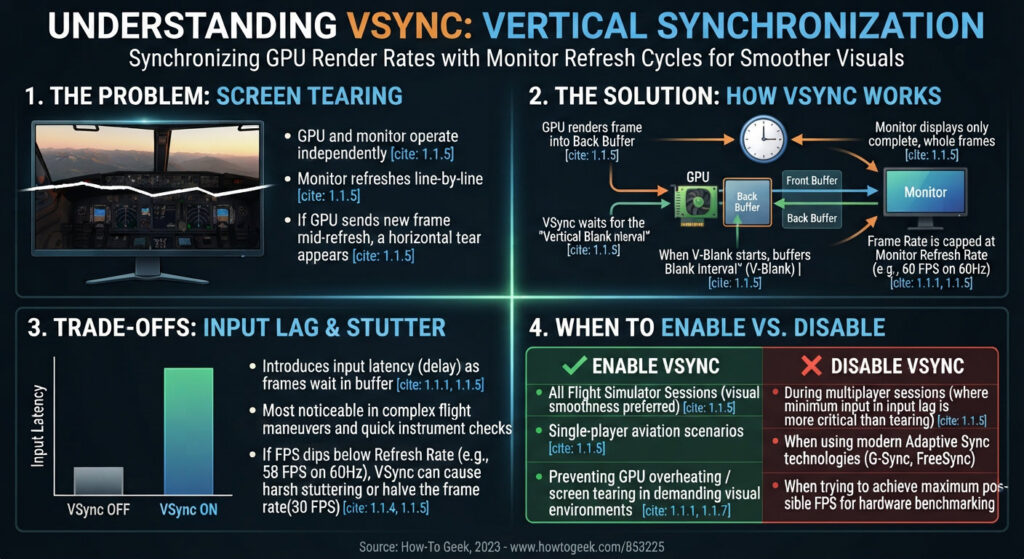
The VSYNC setting can help. Vsync, short for monitor vertical synchronisation, is a setting in X-Plane that helps smooth out visuals. It works by matching the frames your computer generates (frame rate) with the rate your monitor refreshes the image (refresh rate). The NVIDIA driver also has a Vsync setting which accomplishes more or less the same thing. However, they don’t work together, so first instruct the Nvidia Driver to “Use the 3D application setting” :
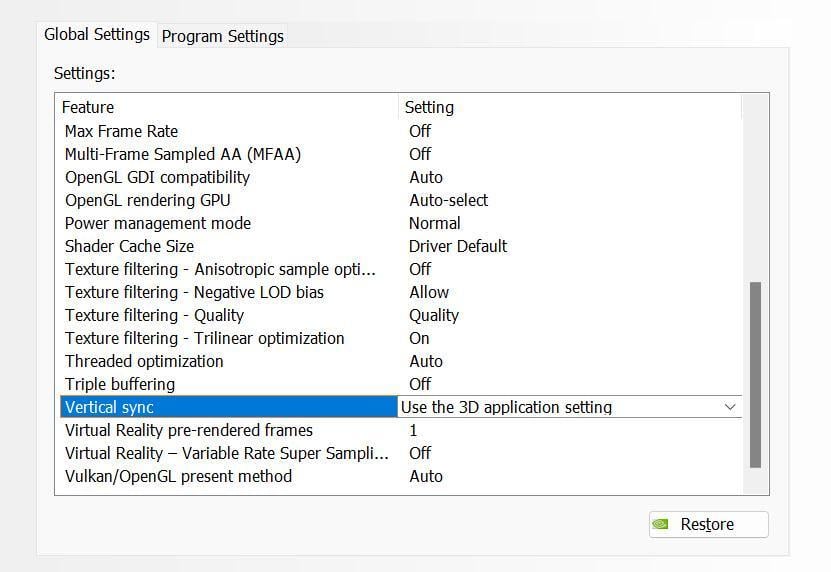
image.jpeg

Then tick the Vsync checkbox (located at the bottom of the X-Plane Graphics Settings screen):

image.jpeg

Before using this tweak, make sure that Windows has correctly identified your monitor and has applied the maximum frame rate.
If you have low-end hardware, you may find that the penalty for using VSYNC is a slight slowdown of X-Plane. There should be little or no penalty for high-end equipment.

Try this out and see if it helps. If the result is worse, you can always uncheck the Vsync box.

For an explanation of how Vsync works with X-Plane click here
Posted on

Perfect Power – Fewer Crashes

This tip applies to desktop computers, not laptops.

Many simulator pilots do not appreciate the importance of clean, consistent power reaching the motherboard.

X-Plane is a very demanding application that can easily stress your computer components. During times of high power draw, a “noisy” electricity supply and/or an inadequate PSU can cause problems. There are two things you can do to protect your computer system and ensure voltages to the individual motherboard sections do not fluctuate when a load is applied. 

First, ensure that your PSU (switch-mode Power Supply Unit) provides at least 30% more power than the total power requirements (at full X-Plane load) of:

  • the Graphics Card,
  • the CPU,
  • the Motherboard,
  • the RAM,
  • the SSDs
  • the mechanical hard drives,
  • the USB-powered peripherals.

Expect a modern computer system fitted with a high-end graphics card to require a PSU rated at least 850W. 

The tool to use is an online PSU calculator. Here is a good one from MSI

The other thing you can do is to invest in a small UPS (Uninterruptible Power Supply). A UPS’s job is to instantly switch in a battery-powered mains power voltage when a brief electricity fluctuation occurs. This may happen if the mains power fails briefly or “flickers” or if a brownout occours. Effectively, a line-interactive UPS “smooths out” the power fluctuation, protecting your flight from a sudden, unexpected crash-to-desktop. It can also protect your expensive motherboard and CPU from voltage surges far better than a surge-protector.

While the purpose of a UPS is to maintain constant power to the computer and the monitor, it does not need to be rated more than 1500VA for a high-end X-Plane system since it just needs to maintain power to cover the brief interruption or to give you enough time to save your flight and shut down properly. A much more powerful inverter would be required to bridge lengthy power interruptions.

If you dislike long flights that suddenly crash, invest in a good quality, over-specced PSU and a small UPS.

Posted on

Blurry Textures

This is a “Tip” only in the most brutal sense. It’s more of an explanation of a bad X-Plane experience!
If you are getting blurry textures – particularly noticeable with high-resolution payware addons – It is most likely that you do not have enough VRAM built into your graphics card.

If you start running out of VRAM, X-Plane won’t crash; instead it will simply make your textures “blurry” to effectively reduce VRAM usage and fit everything into the available video memory.

Many payware addons have a “recommended VRAM requirement” which is nowhere near the “minimum X-Plane 12 requirement”.
With recent improvements to X-Plane 12 more and more stuff is being handled by the Graphics card and unfortunately older Graphics cards with less VRAM are beginning to no longer be fit for purpose.
If your graphics card is fitted with 6GB or less you are bound to have a less than clear display even on a lower-resolution monitor. You may also start getting “device loss errors”.
For a decent visual X-Plane experience you will need a minimum of 8GB VRAM, and more realistically 12GB VRAM. If you are making a purchase for long-term sustainability, “bite the bullet” and look at a GeForce RTX 3090 or a 4090 which has 24GB.

If money is no object, the new GeForce RTX 5090 boasts 32GB.

Posted on

Q8Pilot’s X-Plane Settings guide

Here is a link to a potentially very useful video by flightsim YouTube blogger Q8Pilot.

This is a video of 7 ways to improve your frame rate.

Not all his settings will necessarily apply to your setup, but it is worth watching his video, comparing his settings to yours, and listening to his reasons for applying certain values and switches.

Of course, when the next major X-Plane 12 update is released, some of these settings may be outdated (The video was released in September 2026), but that’s the reality of our ever-improving X-Plane 12. 😁

Please do not consider this a “one video fixes all” solution. No flight sim computer system is identical to another. Some of his ideas will not affect your system, or may even result in worse performance, but overall, this video is full of useful settings that are worth a look. Use what works and ignore what doesn’t. 

If your system works fairly well, but you are looking for some tweaks to coax just that little bit more performance, make sure you make a note of your original settings before making alterations. I personally have to admit being very guilty of this mistake – you will never reliably remember what your original settings were after tweaking things a number of times. Ideally, simply make a second copy of your entire X-Plane 12 folder before making any changes. Ignore this paragraph at your peril!

Posted on

Flight Models per Frame Setting

In the “General” tab of the Settings menu there is a strange-looking setting called FLIGHT MODEL:

Flight Model.jpg

This is usually left at the default setting for the default Laminar aircraft but some add-on aircraft may well require higher Flight Models per Frame setting particularly if it is a very fast combat aircraft, a very light glider or drone, or a very small aircraft like a Radio-controlled small scale aircraft being flown in a full-scale simulator like X-Plane.

Many X-Pane users have no idea what to do with this setting. However, buried in the X-Plane.org forums there was an interesting discussion about this with contributions from many of the most experienced X-Plane users. It’s well worth a read. You’ll find the thread here

The official manual also has a few things to say about Flight Models per Frame. Go to the on-line Desktop manual and in your browser search for “My Frame Rate is Low” and you’ll get to the right page.

Posted on

Nvidia Drivers – update or not?

The latest NVIDIA driver is not necessarily the best. Be cautious about updating it as soon as it is released. 
A better approach is to download a driver and keep the .zip archive file after installation. If you update the driver and X-Plane behaves worse, you can always revert to the older (better) driver.

Look at the specific improvements NVIDIA announces – I have never seen X-Plane specifically mentioned in any of their gaming improvement lists – but that doesn’t mean the new driver might not improve X-Plane’s performance on your machine.

Posted on

CPU or GPU – Identifying the Hardware Bottleneck

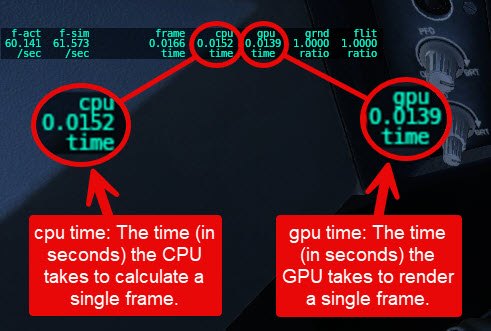
Before setting up your X-Plane hardware for maximum performance, you want to ascertain whether the CPU and the GPU are roughly in balance. This will warn you whether you seriously need to consider upgrading to a better CPU or a better GPU before you go to all the trouble of running further tests and setting your whole system up carefully.

In the X-Plane’s settings screen, click on the Data Output tab. Tick the Frame rate checkbox. Start X-Plane

CPU Time Vs GPU Time.jpg

With X-Plane running, compare the time the CPU takes to calculate a frame with the time the GPU takes to render that frame. Ideally, with perfectly balanced hardware, the two numbers should be identical but in actual practice, as you move the view, the two numbers will change. They will also change if you change the graphics settings. The main point here, however, is that if the numbers are reasonably similar, then your hardware is balanced. If one or the other is very much larger, it’s an indication the one is being maxed out while the other is just coasting along. Also if one value is constant while the other fluctuates with different views, then you know that either the GPU or the CPU is saturated and can’t keep up with the other.

For more information on this subject @Janov wrote an excellent post about this bottleneck on X-Plane.org

on X-Plane.org