
Posted on

The “misbehaving” Right-Drag button

To right-drag in the X-Plane view [ Press and hold the right mouse button ][ Move the mouse ] is much more convenient than using the keyboard or the HAT switch on a controller.

However, be aware of two quirks. If you have a sensitive right mouse button you may find yourself locked into a continuous panning effect even when the button is released and you merely move the mouse.
This is caused by a double-right-click. This is great if you want the constant panning effect, but disturbing if it is unexpected. To cancel this constant panning, make a single right-click. (Left clicking has no effect).

The other effect occurs when you start a right-drag with the cursor touching the left or right edge of the monitor. You will find that you can pan away from that side but if you pan back you can pan only as far as that edge, whereupon the panning refuses to pan further in that direction. The solution, of course, is to start a right-drag with the cursor anywhere except flush up to a side edge. Then your panning is unrestricted.

Posted on

Brakes, Chocks and Aircraft that refuse to Taxi

There have been a number of changes to the way brakes are applied and released.

  • If the brakes are released and the aircraft still won’t move, check the chocks in the ground handling menu.
  • The “V” key (maximum brake effort) works differently. You can no loner release brakes by using V as a toggle.
  • The “B” key works in some aircraft and not in others (try it in the Cirrus for example)
  • The “B” key has different strengths in different aircraft.
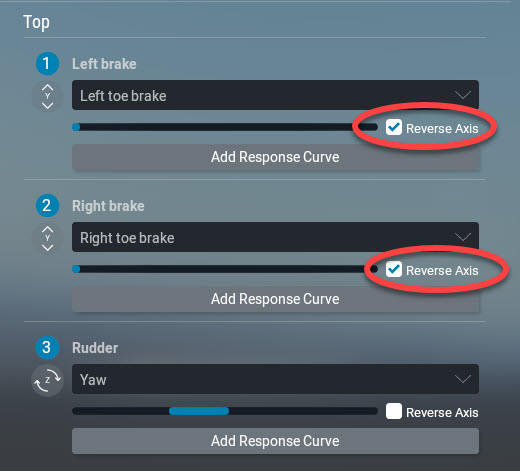
  • And of course the granddaddy of all handbrake confusion – check that your pedals are not set to “full brakes” when released. (To fix, swap the brake axis assignments by ticking or unticking the “Reverse axis” checkbox in the AXES section of the Joystick Settings menu).

And the BEST TIP OF ALL:

– Set the Data Output “Gear & brakes” (#14) to display on the screen. Then you can see what is working and at what strength (from 0.0 to 1.0).

The easiest way to see “whats going on” is to use the Data Output functionality and display “gear&brakes”, this will show you the ratio of brake application from 0.0 to 1.0.

Posted on

Increase the throttle but the aircraft won’t move

I came across this problem with a new X-Plane install.

The Scenario:

A virginal installation. Joysticks calibrated.

  1. First flight in the default Cessna C172.
  2. Release handbrake,
  3. Add 70% throttle.
  4. Prop spins up.
  5. Audio changes to take off growl. 

The Problem:

The aircraft does not move. 

 Unsuccessful fix attempts:

  • Press image.gif once. Nope. Press the key again. No change.
  • Check if any command with the word “brake” in it is associated with any hardware switch
  • Click the handbrake image to release it. No change.
  • Restart flight. Same story – aircraft won’t move

The solution:

Sometimes the pedals axes are reversed in a new installation.

Go to the Option: Settings –> joystick –> pedals device and Click the “Reverse  Axis” checkbox for each pedal .

Check out this tip containing 7 tips about a stubborn stuck handbrake