Posted on

Watch how ATC works

If you are a new user of X-Plane, learning to fly properly, and you are confused about how ATC works, X-Plane can help you by showing you how it is done.

Start a new flight from any metropolitan airport (Mid size – not an airstrip but not a large international). Choose a small GA aircraft. Ideally, in an area you are familiar with in real life.

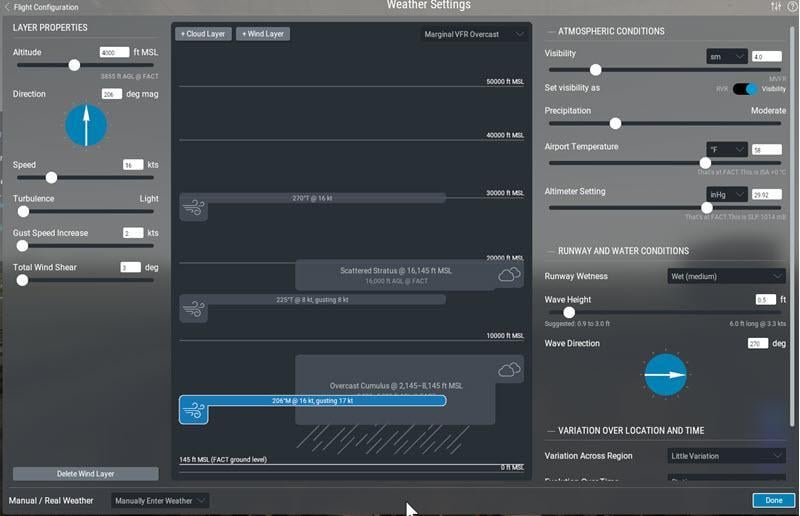
Set the weather to “Marginal VFR Overcast” and precipitation at “Moderate”. Set a wind speed of  16kts at an altitude of 4000ft
WeatherSettings.jpg

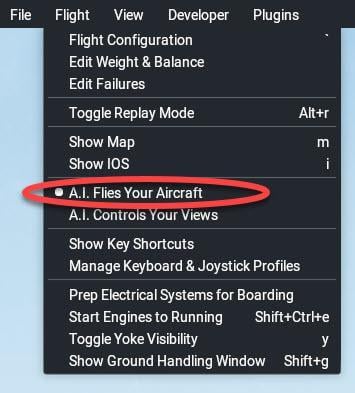
Click “A.I. Flies Your Aircraft” from the Flight pull-down menu:
ai flies pull down.jpg

After a while, the aircraft will come to life, and you will see the ATC panel. A.I. will choose a destination airport and will automatically take off, fly the route and land. All you need to do is watch the ATC conversation and see what ATC says,  how the AI pilot replies, and then how “he” reacts. It is particularly useful to do this in cloud conditions where you cannot see the ground and quickly lose orientation. Watch how the A.I. pilot relies on instruments and ATC instructions. Watch how quickly the A.I. obeys ATC.
Once the flight is complete, try it yourself without A.I.
Remember to “read back” every communication ATC sends you.

Note – when trying this tip, set the number of A.I. aircraft to zero.
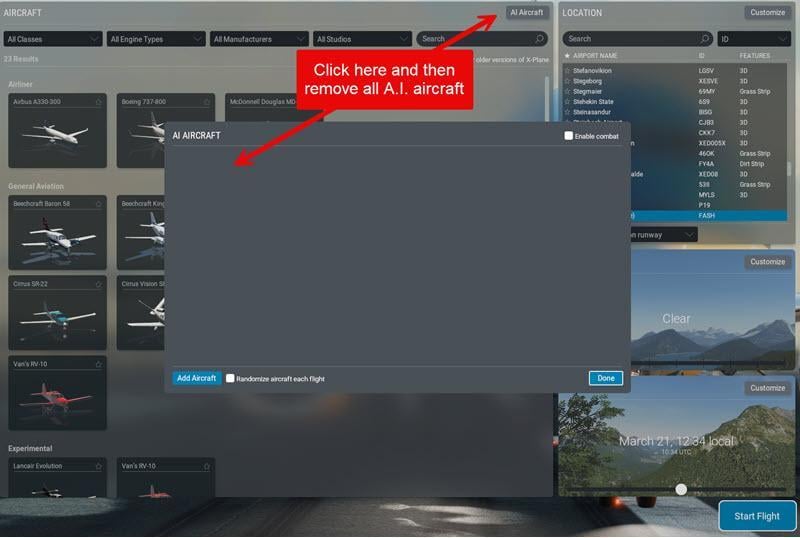
RemoveAIAircraft.jpg

When there are many A.I. Aircraft around, ATC often gets very slow.
Posted on

Control your Static and Dynamic aircraft

This is a tip for new X-Plane users. While you have no control over the visibility of “object-based” static aircraft – these are permanently baked into the airport scenery by the airport designer – you do have some control over AI aircraft and also the aircraft that X-Plane populates at various gates.
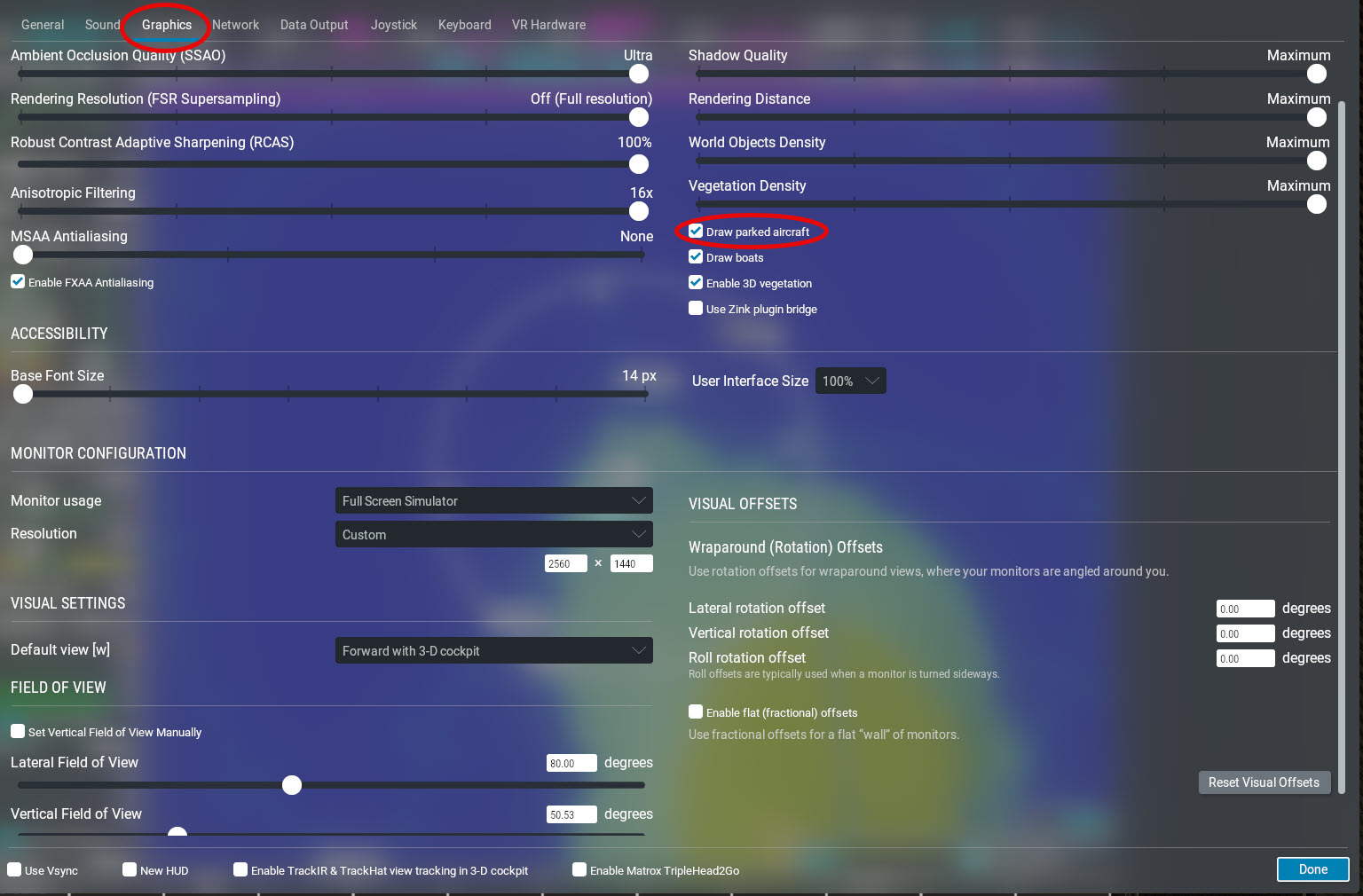
You can tell X-Plane to populate the airport by going to Settings –> Graphics and checking or unchecking “Draw parked aircraft“:

Graphics-ParkedAircraft.jpg

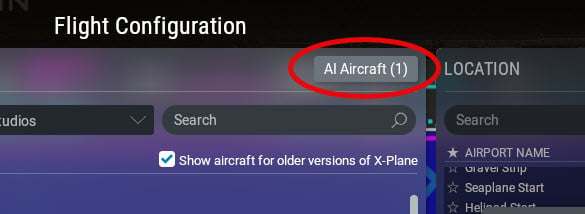
In addition, you can control the number of dynamic AI aircraft in operation at the nearest airport by clicking the AI Aircraft button on the flight configuration screen:

AI Aircraft.jpg

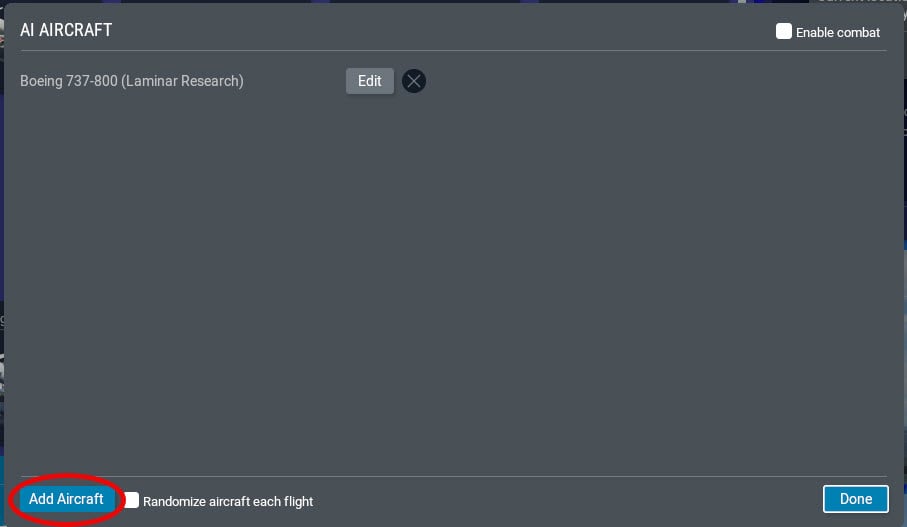
And then click the Add Aircraft button to add another AI Aircraft. Click the EDIT button to change the number, type, and livery of the AI aircraft:

AddAircraft.jpg
Posted on

“ToolTips” visibility

In the SETTINGS page under the General tab, you can instruct X-Plane to show instrument instructions/descriptions when you hover the mouse over a clickable control in the cockpit:

tooltips-2.jpg
The result is something like a “tooltip” :

tooltips-1.jpg

The problem is that these “tooltips” can get in the way, so it’s useful to be able to turn them off by simply unticking the checkbox.

Posted on

ATC in headphones and Aircraft Sounds through speakers

Most computers capable of running X-Plane are fitted with Bluetooth capability. If you have a pair of Bluetooth headphones you can easily set up a realistic system where ATC sounds are piped through the headphones while ambient aircraft sounds can be heard through the speaker output(s) of your motherboard.
First make sure Bluetooth is on and the headphones are paired.
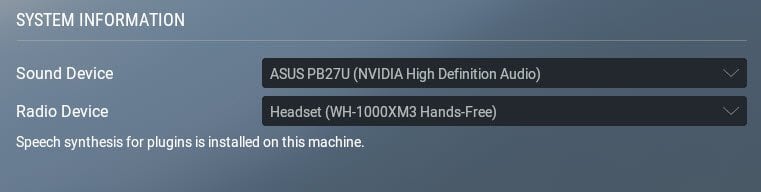
Then in the X-Plane SETTINGS –> SOUND section, assign the headphones to Radio Device and the speaker output to Sound Device as shown:

Headphone sounds.jpg

That’s all you have to do except control the respective volumes via the operating system

Extra Tip: Instead of using computer speakers or worse – the internal speakers of a monitor (as shown above), rather connect your motherboard’s Line-Out jack to the input of an old HiFi system lying forgotten in the attic with those big old speaker cabinets, and crank up the volume.
Extra Tip 2: If you don’t have an old HiFi system you can pick up mighty systems that were state-of-the-art fifty or sixty years ago quite cheaply from E-Bay or other online “classifieds” sites. Those are brilliant for an X-Plane simulator.

Posted on

Joystick Profile Management

When you assign X-plane commands to joystick/yoke/throttle quadrants it is always a good idea to save the assignments to a new profile using the Manage Profiles button. You then associate that profile with one or more aircrafts. Each time you make a new set of assignments, save them to a different profile. That way, you can have a specific set of command assignments for every different aircraft that you fly.

Save joystick profile.jpg

Each profile will be saved as two files YourProfileName – Joysticks.prf and YourProfileName – Keys.prf in the … X-Plane 12\Output\preferences\control profiles folder.

If you decide to re-download a new virginal copy of X-plane, it’s the easy enough to simply copy the … X-Plane 12\Output\preferences\control profiles folder across to your new installation.
Of course, this folder should always be backed up as well to save you having re-do all your control preferences again.

Posted on

You can set manual weather to change over time.

When setting up the weather for a new flight most of us that don’t want real weather, just choose the “Manually Enter Weather” option and simply set clear skies or clouds or rain. However X-Plane offers the option to manually set an starting weather and have it gradually change over time: Manual weather changes.jpg

The defaults are Static with no Variation Across The Region. But these can be changed according to your preference.

Posted on

Disabling Mouse Wheel Zoom

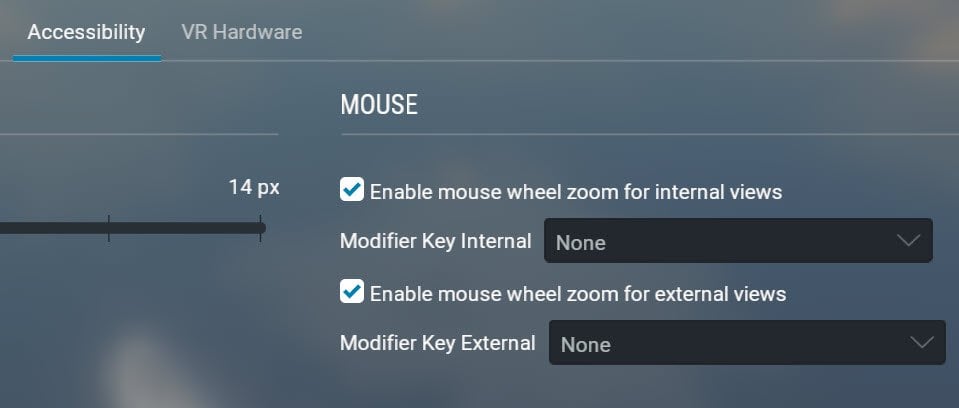
While X-Plane defaults to allowing the mouse wheel (if you have one) to control the zoom factor both in the Cockpit view and also the External view, a new feature was recently added allowing you to specify whether rolling the mouse wheel will operate in the cockpit but not outside, or vice-versa. To set this up, go to the main SETTINGS screen and you’ll find the option under the Accessibility tab:

mouse zoom.jpg

You can completely disable mouse wheel zooming by un-ticking both checkboxes.

Posted on

The useful Freeflight.prf file

After each successful flight, X-Plane stores a whole lot of information from the flight of each aircraft you have flown with, which is used as starting data for the next flight. Its worth having a look into this file and see exactly what is saved there. The entries are sometimes somewhat cryptic, but it’s easy to figure them out. You can find this file in the …X-Plane 12\Output\preferences folder.

These entries can happily be changed (It’s just a text file) if you are unhappy with the numbers, or even deleted of they are screwed up. X-Plane will replace anything deleted with it’s default value.

For example, the fuel left over from the previous flight (shown in red), or the payloads (shown in Blue) of a particular aircraft (in this case the Cessna 172) is stored in these lines:

P _weight_and_balance _AircraftLaminarResearchCessna172SPCessna172SPG1000acf {“weight”:{“deicefluid_in_liters”:0.0,”deice_holdover_time_in_minutes”:0.0,”fueltank_weight_in_kilograms”:[39.641891479492188,39.641849517822266,0.0,0.0,0.0,0.0,0.0,0.0,0.0],”oxygen_pressure_in_millibars”:0.0,”payload_weight_in_kilograms”:[41.788509368896484,41.788509368896484,34.190597534179688,34.190597534179688,22.793731689453125,9.4973878860473633]}}

You can either change these values (don’t worry about the numbers after the decimal point),
or simply delete the whole entry and when you begin a flight with that particular aircraft X-Plane will load the aircraft with it’s default fuel (usually half-full tanks) and default payload.

Posted on

Cockpit goes dark

This is something which catches most of us at some stage. You are flying merrily along, steadily gaining height and suddenly… “oops” … I must have flown into an eclipse… Everything has gone dark… what did I do wrong now? you ask yourself. Is my PC overheating? … something has gone badly wrong…

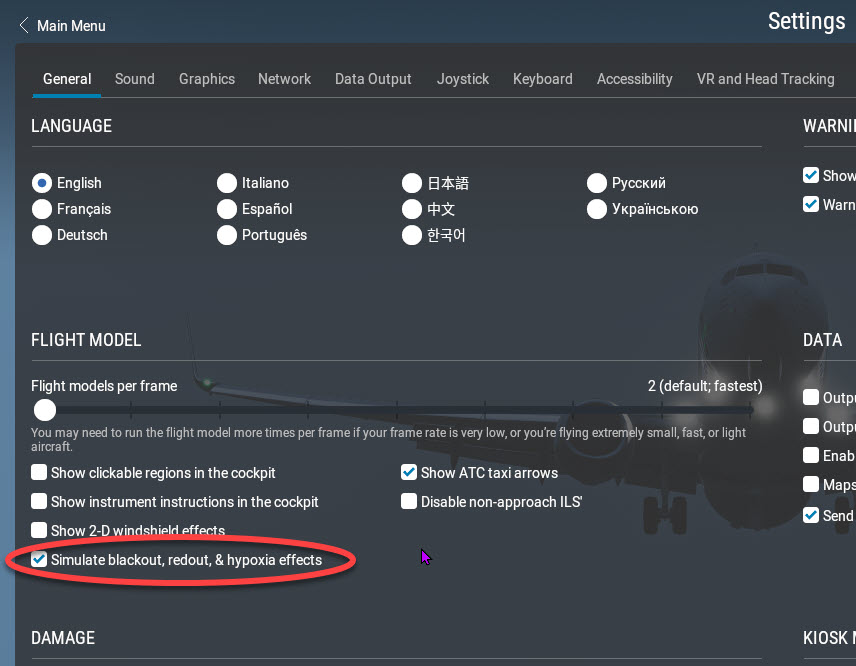
No nothing has gone wrong. You are flying a simulator which actually simulates … You need Oxygen… Hypoxia…

You can turn the effect off by un-ticking the checkbox in the Settings –> General page