Posted on

Visualize your Pilot Log files

In the …X-Plane 12\Output\logbooks folder there is a file called X-Plane Pilot.txt. This file contains a logbook of all your flights. While it is easy to view it from within X-Plane (File –> Open Logbook) it may not be so easy to visualize since all you see is text information arranged in columns and rows. For better visualization, there are two very useful apps that can use this file. Try them both out.

The first is the VSKYLABS Logbook visualizer. This free app (get it here) provides an global map overview of all the airports you have visited. A sleek and polished app. Thank you @VSKYLABS

You can also use the full power of Little Navmap (also free) by importing this file directly into Little Navmap where it will create the logbook file inside LNM. Using this panel you can quickly go to the airports you previously visited by simply clicking them. You can get Little Navmap here. Thank you @albar965

Posted on

Disabling Mouse Wheel Zoom

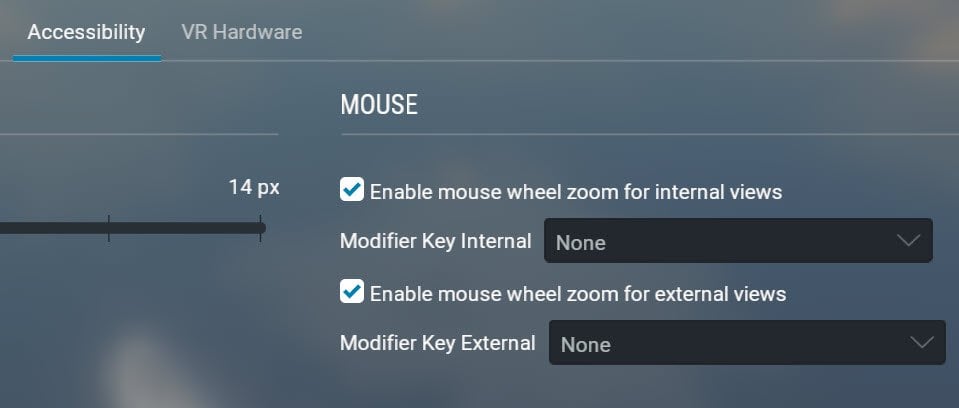
While X-Plane defaults to allowing the mouse wheel (if you have one) to control the zoom factor both in the Cockpit view and also the External view, a new feature was recently added allowing you to specify whether rolling the mouse wheel will operate in the cockpit but not outside, or vice-versa. To set this up, go to the main SETTINGS screen and you’ll find the option under the Accessibility tab:

mouse zoom.jpg

You can completely disable mouse wheel zooming by un-ticking both checkboxes.

Posted on

Custom Main Menu Wallpaper

If you feel like a change from the default wallpaper that appears behind the main menu, you can add any image (screenshot or wife-portrait) into the …X-Plane 12\Output\backgrounds folder. This folder is empty by default.

Just make sure that you have cropped them to the display proportions of your monitor.

You can add either a .JPG file or a .PNG file. If you add two images into this folder, X-Plane will alternate between the two backgrounds each time you start a new session.

If you remove the images from this folder, the default image displays again.

Posted on

Flight Planner – Little Navmap

All serious X-Plane pilots need a flight planner and as long as the resulting flight plan can be imported into X-plane, you can use any flight planner and you are good to go. However there is one absolute gem out there which many X-Plane pilots don’t know about. Little Navmap is a free, open-source application that functions as a comprehensive flight planner, moving map, navigation tool, and airport information system, fully supporting X-Plane 12. It serves as a powerful external tool designed to streamline pre-flight planning and enhance situational awareness during the flight. You can download it here. It is unbelievable that such a complex, capable, polished and incredibly useful piece of software is provided to us at no charge. A very special thanks to @albar965

You can download it here (Don’t let the date of the download post fool you, Little Navmap is constantly being updated)

LNM is really good at consolidating extensive aeronautical data and flight planning features into one interface. Its core purpose is to simplify the creation and execution of complex Area Navigation (RNAV) flight plans, A secondary purpose is to provide an understandable usable moving map to track our flight in real-time.

1.] Comprehensive Data Visualization: LNM displays crucial data layers, including airports, runways, NAVAIDs (VOR, NDB, ILS), airways, and airspace boundaries, which reflect the layout found in X-Plane’s stock and add-on scenery. This capability allows pilots to gain full positional awareness (moving map display) of the entire route and surrounding environment

2.] Advanced Route Construction: It allows graphical construction of flight plans using simple map clicks. LNM handles complex procedures, enabling the integration of SIDs, STARs, and approaches directly into the plan

3.] Performance Calculation: The tool facilitates detailed calculations, including creating and displaying an elevation profile that shows terrain, altitude restrictions, and the aircraft’s projected climb and descent path. It can also perform detailed flight and fuel planning, if necessary, utilizing calculated True Airspeed (TAS) and winds aloft data.

4.] Automation and Guidance: LNM automatically centers the map on the user aircraft and the next active waypoint during flight. It can also gather real-time performance data from the simulator aircraft to create custom performance profiles.

5.] Flight Plan Import: After you complete the flight Plan you can save it as an FMS file and import it directly into the G530, G1000 or into one of the FMC units of the bigger aircraft in X-Plane.

So, how does LNM work with X-Plane 12?

For Little Navmap to function as a real-time moving map and interact with X-Plane 12, a dedicated 64-bit plugin called “Little Xpconnect” is installed in the X-Plane plugins directory. This plugin facilitates the transfer of aircraft position, AI traffic, and weather information between the simulator and LNM. Sometimes “plugins” have a bad reputation for causing instabilities and strange behaviour in X-Plane 12. To the best of my knowledge, this plugin is 100% compatible with X-Plane 12 and has never, ever, caused any troubles in my system. It’s “performance/frame-rate cost” when flying is minimal.

You can either use Little Navmap on the “flying” computer simultaneously with X-Plane (ideally with a dual-monitor system), or you can use it on a second computer which links to the “flying” computer via your local network (Ethernet or WiFi). I prefer the latter since it allows me to use more than one screen for flying, keeping LNM completely separate.

To get the most out of LNM, there is a large manual available (online or downloadable), so RTFM !

To get even more out of Little Navmap take a look at this book on Flying-Low’s stable

Posted on

The useful Freeflight.prf file

After each successful flight, X-Plane stores a whole lot of information from the flight of each aircraft you have flown with, which is used as starting data for the next flight. Its worth having a look into this file and see exactly what is saved there. The entries are sometimes somewhat cryptic, but it’s easy to figure them out. You can find this file in the …X-Plane 12\Output\preferences folder.

These entries can happily be changed (It’s just a text file) if you are unhappy with the numbers, or even deleted of they are screwed up. X-Plane will replace anything deleted with it’s default value.

For example, the fuel left over from the previous flight (shown in red), or the payloads (shown in Blue) of a particular aircraft (in this case the Cessna 172) is stored in these lines:

P _weight_and_balance _AircraftLaminarResearchCessna172SPCessna172SPG1000acf {“weight”:{“deicefluid_in_liters”:0.0,”deice_holdover_time_in_minutes”:0.0,”fueltank_weight_in_kilograms”:[39.641891479492188,39.641849517822266,0.0,0.0,0.0,0.0,0.0,0.0,0.0],”oxygen_pressure_in_millibars”:0.0,”payload_weight_in_kilograms”:[41.788509368896484,41.788509368896484,34.190597534179688,34.190597534179688,22.793731689453125,9.4973878860473633]}}

You can either change these values (don’t worry about the numbers after the decimal point),
or simply delete the whole entry and when you begin a flight with that particular aircraft X-Plane will load the aircraft with it’s default fuel (usually half-full tanks) and default payload.

Posted on

The Altitude gauge has gone crazy!

Of course, a real pilot would never make this mistake, but sometimes someone in a hurry to get airborne might get tripped up.

Consider the following three screenshots:

Alimeter-1.jpg
Alimeter-2.jpg

The Altitude guage has gone crazy!

The screenshots are all taken at KFSO. But since KFSO is close to sea level, and some parts of the runway are actually with a few feet of sea level, the altimeter is reading correctly in only one of these screenshots. The screenshots were all taken at the same location.

What happened? The answer is simple – you, the pilot forgot to click the altitude knob before take off. This could become a “little tricky” if you only bothered to look at the gauge when in flight…
Remember, X-Plane is not a game, it is a remarkably realistic flight simulator!

Posted on

Honeycomb Bravo only partially works out of the box.

If you have just purchased a Honeycomb Bravo Throttle Quadrant, you will soon discover that while the X-Plane automatically detects this peripheral and allows you to configure most of it’s controls, the buttons. rotary switches, and annunciator lights don’t work, and the trim wheel is a nightmare. The next step that the new user usually does is to download and install the official honeycomb software on their website. Then the nightmare really begins in earnest because this is a truly horrible piece of software.
Instead of installing this official software monstrosity, skip installing it (or remove it from your computer entirely) and rather download and install this excellent freeware plugin from the X-Plane.org freeware repository. The plugin was developed by @ZodiacZ and publicized by @ELATES and works superbly and is really easy to setup. There are quite a few existing aircraft profiles available in the download for specific default and add-on aircraft. The plugin even works with the excellent skunkcrafts updater.
If you create a profile for a particular aircraft not in the already available profile list, you can contribute to making this plugin even better by submitting the profile that you create for everyone to use.

Posted on

Fly-In – A treasure trove of flights

There is a thread on x-plane.org that has been going for many, many years – regularly every week – run by @Kumiankka . And yet, judging from the lack of discussions and comments on this huge forum as a whole, I suspect many forum users are actually quite unaware of it. The reason (I guess) is probably because the title suggests that it is an on-line flying/VATSIM sort of thread. This is definitely not the case.

Do yourself a favo(u)r and browse through this Fly-In forum, choose a flight that looks interesting and click on the discussion thread for that particular flight. There are literally hundreds of flights to choose from – the more recent flights are better illustrated and laid out than the earlier ones way back in 2004.
I guarantee this will open up a whole new world for those of you who have X-Plane set up and ticking nicely, and are now looking for inspiration about where to fly. Each flight contains a description as well as some comments and tips and often links to relevant freeware sceneries if you feel so inclined.

Posted on

Optional ATC choices

Sometimes strange things happen with ATC. For example, it can happen that ATC offers you the option to ask for a pushback when you are in a GA aircraft. Really? Maybe such an option appears because you are parked in a non-GA slot; or sometimes you have to be parked in a tie-down location; or sometimes the airport is just coded badly.

Some ATC requests are requirements, some are optional while a lot are just a bit confusing.
Some items like “request altimeter” or “Request Weather” or asking for a radio check are optional, but once you start using ATC, you are required to obey what it instructs you to do. If you don’t, it will usually first nag you a few times, and then curtly inform you that ATC services are being cancelled.

Above all, if you want to use ATC (it’s optional) make sure you are familiar with the ATC manual. You will find the X-Plane_ATC_System_Manual.pdf in your X-Plane installation: … X-Plane 12\Instructions.

Posted on

Older Versions of X-Plane

Sometimes we look through our collection of old but superb payware or freeware aircraft and would like to fly them again, but they are incompatible with X-Plane 12.
For example, did you ever get the sudden yearning to fly the DC6 from PDMG that was not ported over to X-Plane 12? It sure cost a bundle of money!

All is not lost… Did you know that you can download earlier versions of X-Plane and install them on the same computer as your X-Plane 12 installation. The different X-pane installations are completely separate and will happily co-exist on your computer, not affecting each other at all. You can install the demo versions of X-Plane 11, X-Plane 10 and even X-Plane 9. If you still have your X-Plane license key you can happily activate them as well. Click here to go to the download page for old versions