
Did you know that in addition to the Flight School section on the massive X-Plane.org site, there is a not-so-well-known treasure trove of downloadable tutorials in the downloads section. This section has nearly 300 downloadable tutorials written by .org members who have tried to give back to the community. While some of the tutorials are new “hot off the press”, some are nearly 20 years old but even the old ones retain some wise wisdom, wonderful explanations and great tips. They are not grouped in any particular way and it’s difficult to search because you are “digging for hidden treasure” and don’t necessarily know what to search for. Take the time to browse through this repository, you find it’s well worth it.
Author: DaveLTB
Be careful about setting MTBF
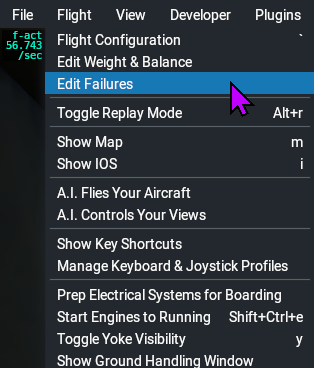
Did you know that you can set the frequency of random failures? However, strangely, this setting is not found in the SETTINGS section. Instead, the MTBF [Mean Time Between Failures] is found as an option in the Flight pull-down Menu:
The failures option is also found next to the Weight, Balance & Fuel button in the initial flight customization screen:
When you click this menu option, in addition to being able to specify a particular failure, you are also able to set the time between random failures by entering an overall failure rate. However, this is deceptive since it means that any device will fail within the specified number of hours – BUT… Since there are currently 584 systems that can potentially fail, the specified time will have to be divided by the number of systems. So, if you expect some system to fail at least every 10000 hours (a reasonable supposition), you need to understand that statistically, you will get a failure of some random item every 17 hours.

Now that’s all very well, but there’s a “gotcha”. The problem comes when you quit X-Plane and start a new flight sometime later. X-Plane REMEMBERS that you have set the MTBF. You, on the other hand, may have forgotten that you enabled the checkbox and set the time interval!
Therefore, a good habit to get into before undertaking a long flight is to check this as part of your pre-flight routine.
Where NOT to install X-Plane on a Windows system
On a windows system there are certain folders which are user-write-protected. One of which is C:\Program Files which at first glance would seem to be the logical place. If you install X-plane in this folder, however, you will get all sorts of troubles, because you (or an addon-on) may not write to it.
Another bad idea is locating the X-Plane folder as a sub-folder of the special Documents folder – this results in all sorts of confusion with Microsoft OneDrive.
Make it a habit to create the X-Plane 12 folder in a first level sub-directory of the root. In other words, the ideal place for the X-Plane Folder is simply C:\X-Plane 12.
Alternatively anywhere on a secondary drive if you have one installed.
On a different but related topic, in 2025 you should not be installing X-Plane on a mechanical hard drive. The data delivery throughput is just too slow for a CPU or Graphics card capable of running X-Plane 12. Ideally, install X-Plane the fastest M.2 SSD you can afford, or at minimum on a SATA SSD. Hybrid SSHD drives (Mechanical hard drives with an SSD cache) also don’t cut it these days.
File flight plan with ATC before entering it into the FMC
Which comes first, the “chicken or the egg”?
When you are planning an IFR flight, it’s always a good idea to file your flight plan with ATC before actually entering it into the FMC. In the days when X-Plane had a far less capable ATC system it did not matter much when you filed a flight plan in the ATC window,. You would get it from the FMC. Now that SIDs and STARs are accepted by the X-Plane 12 ATC system, if you are entering the flight plan directly into the FMS first, there is a 50/50 chance that ATC will not accept the flight plan that you proposed. Maybe your desired runway is not in operation today (weather or some other reason) or maybe a waypoint is not recognized. Then you have to go right back to the planning stage and change things around to a greater or lesser extent.
If you first put in your SID, waypoints and STAR and ATC accepts them, then you can go to the trouble of entering it all into the FMS afterwards. If you are loading your FMS from the output of your flight planner and then filing it with ATC, you run into the same problem.
While not so convenient in X-Plane because you are a “one man band”, in real aviation the flight plan is actually entered into the FMS as late as possible – certainly after the flight plan has been filed. So this tip brings us a step closer to real aviation.
New Accessibility Tab in the Settings Menu
Did you notice that Laminar recently added a new “Accessibility” tab to the Settings menu.

This tab makes it easier to solve the problem of text being too small on high resolution monitors. Also you can now enable the mouse wheel magnification separately in internal cockpit views as well as external views.
ATC in headphones and Aircraft Sounds through speakers
Most computers capable of running X-Plane are fitted with Bluetooth capability. If you have a pair of Bluetooth headphones you can easily set up a realistic system where ATC sounds are piped through the headphones while ambient aircraft sounds can be heard through the speaker output(s) of your motherboard.
First make sure Bluetooth is on and the headphones are paired.
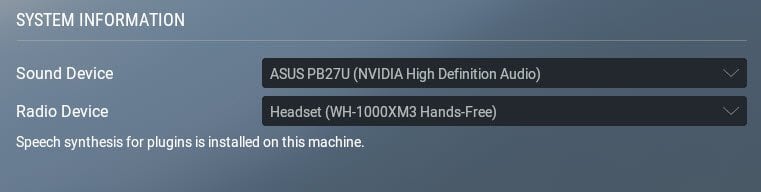
Then in the X-Plane SETTINGS –> SOUND section, assign the headphones to Radio Device and the speaker output to Sound Device as shown:
That’s all you have to do except control the respective volumes via the operating system
Extra Tip: Instead of using computer speakers or worse – the internal speakers of a monitor (as shown above), rather connect your motherboard’s Line-Out jack to the input of an old HiFi system lying forgotten in the attic with those big old speaker cabinets, and crank up the volume.
Extra Tip 2: If you don’t have an old HiFi system you can pick up mighty systems that were state-of-the-art fifty or sixty years ago quite cheaply from E-Bay or other online “classifieds” sites. Those are brilliant for an X-Plane simulator.
Joystick Profile Management
When you assign X-plane commands to joystick/yoke/throttle quadrants it is always a good idea to save the assignments to a new profile using the Manage Profiles button. You then associate that profile with one or more aircrafts. Each time you make a new set of assignments, save them to a different profile. That way, you can have a specific set of command assignments for every different aircraft that you fly.

Each profile will be saved as two files YourProfileName – Joysticks.prf and YourProfileName – Keys.prf in the … X-Plane 12\Output\preferences\control profiles folder.
If you decide to re-download a new virginal copy of X-plane, it’s the easy enough to simply copy the … X-Plane 12\Output\preferences\control profiles folder across to your new installation.
Of course, this folder should always be backed up as well to save you having re-do all your control preferences again.
You can set manual weather to change over time.
When setting up the weather for a new flight most of us that don’t want real weather, just choose the “Manually Enter Weather” option and simply set clear skies or clouds or rain. However X-Plane offers the option to manually set an starting weather and have it gradually change over time: 
The defaults are Static with no Variation Across The Region. But these can be changed according to your preference.
How to see where is ATC directing me to
Sometimes we get strange course corrections from ATC which don’t seem to be logical.

In order to get a visual indication of where ATC wants us to fly to, toggle on the option to show Air Traffic Paths. This is found in the Developer menu:
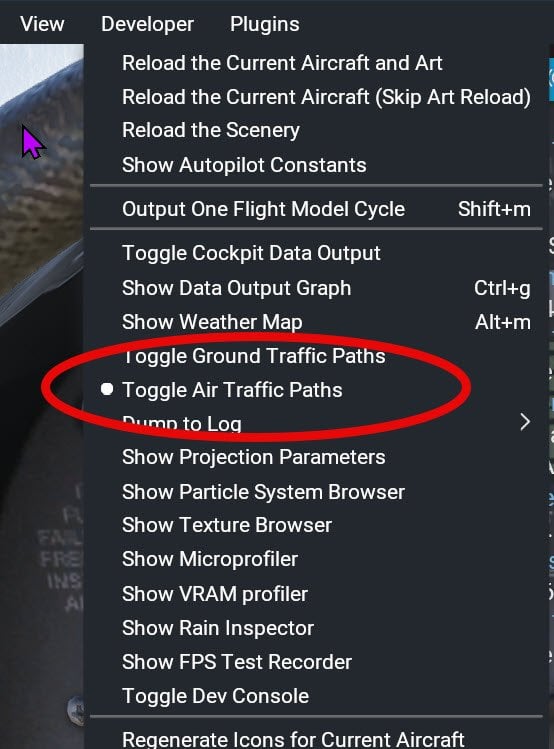
Open Map view [M] and you will see a green line indicating the direction that ATC wants you to fly. The line begins at the current location of your aircraft. Every time ATC gives you a course correction, this line changes.

Toggling this option off removes the green line from the map screen.
The difference between IAS, TAS, GS and CAS
Many new pilots get confused between the different types of airspeeds and how they affect your flying and navigation. Here is a concise easy-to-understand article from the Boldmethod site which clearly explains the difference.
Browse around their site for many other useful lessons on aviation topics. Being a teaching site, they are particularly good at explaining aviation concepts in an easy-to-grasp manner.