Posted on

Some Bullet-form Tips for Using X-Plane 12

Stability

  • Disable Unnecessary Plugins. Unused or incompatible plugins can tank performance. This is the #1 Stability tip of all time. Don’t just disable them; remove them from the directory hierarchy.
  • Optimize, but do not overclock your CPU or your graphics card
  • Cool your motherboard, RAM, and M2 SSDs. More than passive chassis fan cooling is required.
  • Use a UPS [UN-interruptible Power Supply] and an over-specced PSU [Power Supply Unit]

Graphics Optimization

  • Tweak Render Settings. Lower the visual effects (e.g., shadows, reflections, and antialiasing) if performance lags. Balance quality and frame rate for your hardware.
  • Try FSR (FidelityFX Super Resolution). X-Plane 12 supports AMD FSR, which can boost performance without significant visual loss.
  • Monitor VRAM Usage: High texture settings can overload your VRAM. Use the “Texture Quality” slider to optimize.

Aircraft Handling

  • Calibrate Controllers. Properly calibrate yokes, pedals, and throttle quadrants in the settings menu to ensure smooth aircraft control.
  • Adjust Control Sensitivity. Use the sensitivity sliders to fine-tune aircraft response, especially if it feels too twitchy.
  • Study the Flight Model Adjustment. X-Plane’s physics engine is advanced – experiment with “Flight Model per Frame” in the settings if you encounter unrealistic behaviour.

Weather System

  • Real Weather Accuracy. Ensure you’re connected to the internet for real-time weather updates. If the weather seems incorrect, force a refresh in the settings.
  • Adjust Turbulence Sensitivity. The new weather system is more dynamic. If turbulence feels overdone, tweak the realism sliders.

Customizing Views

  • Save Custom Camera Angles. Use the [Ctrl] + [number keys] to save cockpit or external views and quickly recall them with the corresponding number key.
  • Use Free Camera Mode. [c] or [Shift] + [4] activates free camera mode, great for screenshots or inspecting scenery.

Multiplayer and ATC

  • Use Default ATC. While not perfect, X-Plane 12’s ATC has improved tremendously over the past year. The latest update, 12.1.3 (about to be released – Time of writing: Late November), contains a huge ATC system update.
  • If you feel more confident, join online networks like VATSIM, IVAO, or PilotEdge for realistic ATC and multiplayer flying.
Posted on

Control your Static and Dynamic aircraft

This is a tip for new X-Plane users. While you have no control over the visibility of “object-based” static aircraft – these are permanently baked into the airport scenery by the airport designer – you do have some control over AI aircraft and also the aircraft that X-Plane populates at various gates.
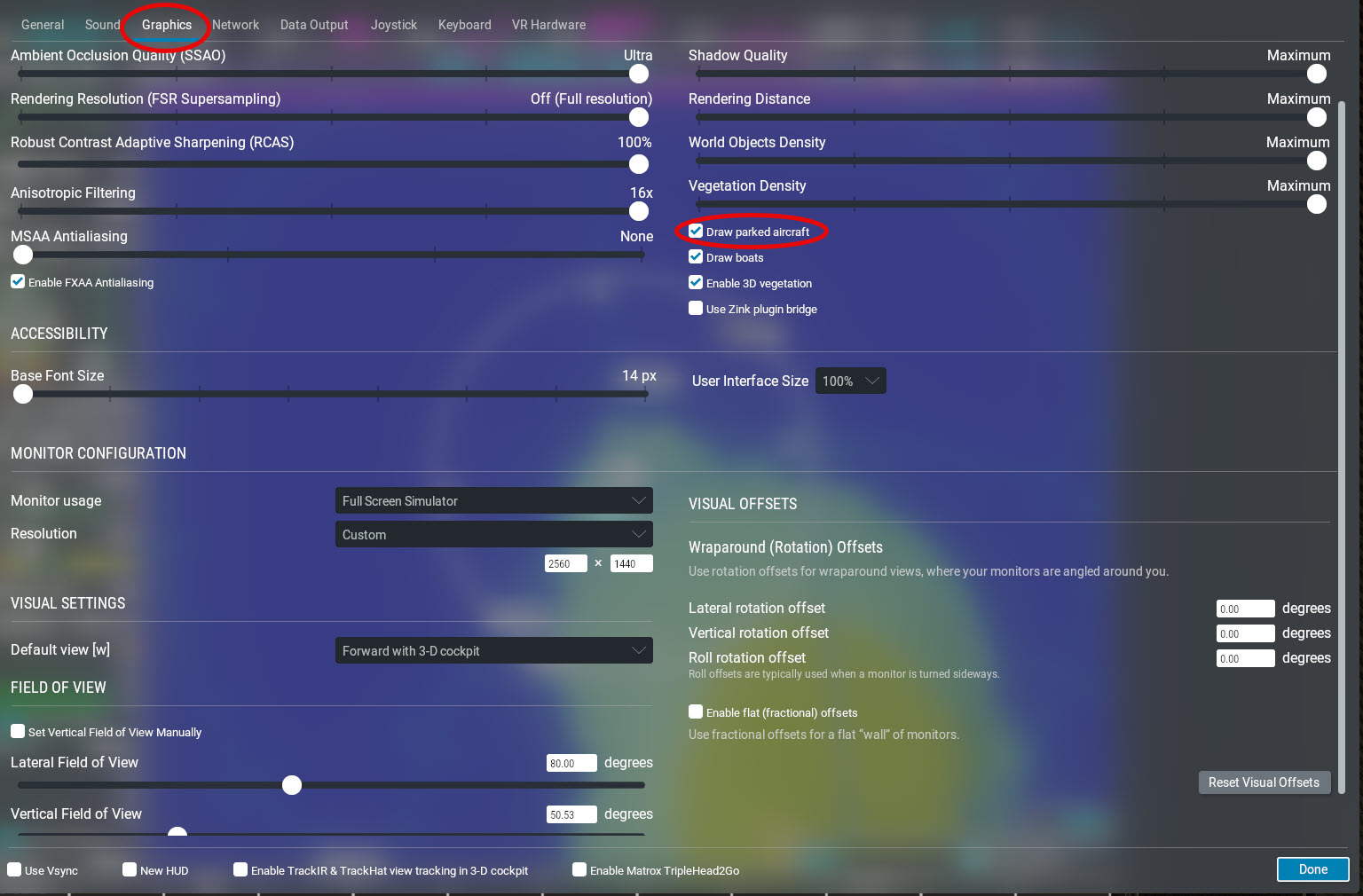
You can tell X-Plane to populate the airport by going to Settings –> Graphics and checking or unchecking “Draw parked aircraft“:

Graphics-ParkedAircraft.jpg

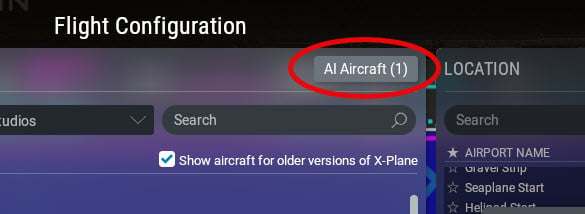
In addition, you can control the number of dynamic AI aircraft in operation at the nearest airport by clicking the AI Aircraft button on the flight configuration screen:

AI Aircraft.jpg

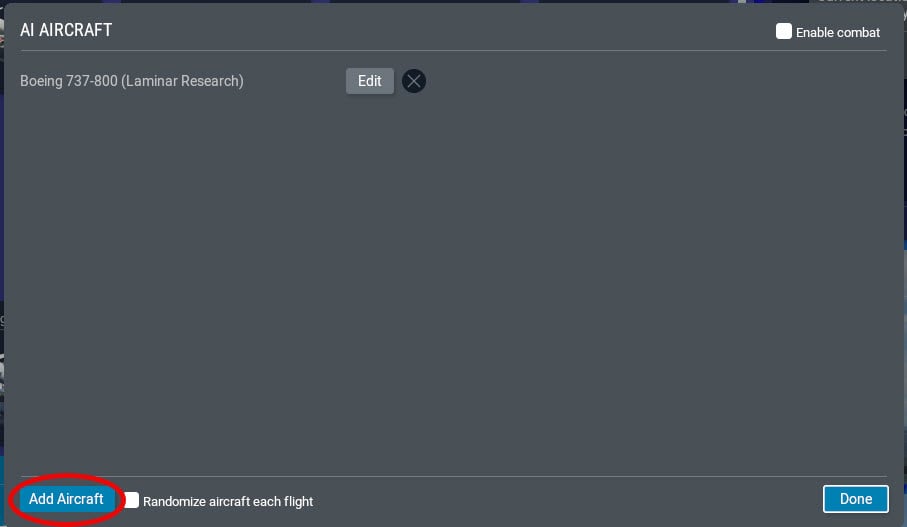
And then click the Add Aircraft button to add another AI Aircraft. Click the EDIT button to change the number, type, and livery of the AI aircraft:

AddAircraft.jpg
Posted on

Plane spotting? Don’t park on the runway!

If you like plane-spotting and enjoy just watching the AI aircraft taxi-ing, taking off and landing and just generally experiencing the airport’s ambience without actually flying, don’t park on a runway or begin a flight from the end of a runway. If you do, X-Plane will act in a logical manner and wait for you to take off. AI activity will come to a stop while X-plane waits for you. If you are in the “ready for takeoff” position you may well find that an aircraft creeps up behind you and just stops and waits. Or sometimes all AI activity just simply stops. 
If you want to watch aircraft, rather park well off a runway, or even better, simply stay at your gate, press the C-30x30.jpg key for free camera movement, and “walk” about using your keyboard and right-mouse button.
Posted on

If it takes too long to decide where to fly…

There is a brilliant website worth visiting. It’s called nextsimflight

This site allows you to either specify your departure airport of choice or, alternatively, your arrival airport.
Then you specify the aircraft you want to use and how much time you have available – i.e., long you want the flight to last.
There are other optional parameters that you can fill in.

Once you have told nextsimflight what you want, a list of suggested destinations which satisfy your criteria appear.

Once you select one of the suggestions, another screen appears, giving you lots of useful information from which you can create your flight plan.

This site is amazingly handy – give it a try.

Nextsimflight.jpg
Posted on

Fix ATC Mid-flight

Sometimes, ATC does things that you are not happy with. It may “forget” to give you vectors or descent instructions; it may get choked up if too many AI aircraft are in the vicinity; it may get confused by a buggy airport… Conversely, sometimes ATC is quite correct, but you did something wrong with your flight plan, or did not read back, or did your own thing, or maybe you were “naughty” and got warned too many times: “Don’t transmit when the channel’s busy”.
To fix a sulky ATC, try asking for flight-following (if ATC will listen to you) and then canceling the flight-following service. Then, file a new plan (while in flight) and ask ATC for clearance. Hopefully, ATC will then behave itself.
Please remember that simulated ATC, in contrast to a real human controller (IRL or on Vatsim), is a mind-blowingly complex piece of programming. X-Plane’s ATC system is constantly undergoing big changes and improvements, so what does not work so well now may well work brilliantly after a few update cycles. If you compare ATC in the last version of X-Plane 11 with that of X-Plane 12 (current version), you will be amazed at the improvements.

Posted on

Keep the logbook “clean”

Serious pilots are fanatical about maintaining a “clean” log file. But we also sometimes want to make a flight (maybe for testing purposes) that we don’t want recorded.

There is a simple way to do this:

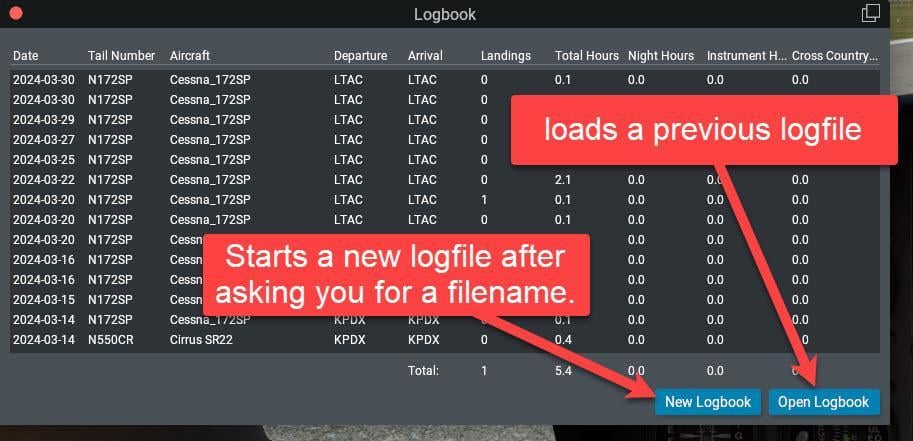
image.jpeg

First, click the New Logbook button and give it a filename (with a .txt extension). Save it in the …\Output\logbooks folder.

Quit X-Plane.

From now on, all your flying will be recorded in the new logbook file.

When you are ready to resume logging your real flights to your real logbook, click the Open Logbook button and select the real logbook file. 

Quit X-Plane.

From now on, all your flying will be appended to the “real” logbook file with no mention of all your experimental flights that you don’t want recorded.

Alternative

Take a look at the logbook feature in Little Navmap

Posted on

LEARN HOW TO FLY – a Tip for Serious Beginner Aviators

Do you want to learn how to fly the RIGHT way? Well here’s a radical idea. Invest in an 80-year-old book!
I’m not Joking. In my humble opinion, the finest book ever written on the basics of learning to fly was written in 1944.

Title: Stick and Rudder
Author: Wolfgang Langewiesche

image.jpeg

You can get a hard copy version from Amazon

No, I don’t get a commission for recommending this – it’s just simply the best of the best

Or borrow it online for free from Internet Archive

Posted on

“ToolTips” visibility

In the SETTINGS page under the General tab, you can instruct X-Plane to show instrument instructions/descriptions when you hover the mouse over a clickable control in the cockpit:

tooltips-2.jpg
The result is something like a “tooltip” :

tooltips-1.jpg

The problem is that these “tooltips” can get in the way, so it’s useful to be able to turn them off by simply unticking the checkbox.

Posted on

Instructor Station on a Second Monitor

If you have a second monitor available and your graphics card can handle it, connect it to your X-plane computer and configure the settings so that one monitor is your main monitor and the other is the instructor station. This has some really useful advantages. Here are just two of them – you’ll discover lots more advantages if you play around with the instructor station:

  • You get a moving map display of your aircraft’s location
  • The aircraft that you are flying can be changed mid flight without being forced to start  a new flight
  • You can change your aircraft’s position by clicking the aircraft icon and then dragging across the moving map while watching your progress as you drag the icon in the other main monitor.

You set it up by going to Settings – Graphics and changing MONITOR1 from Unused to Instructor Operating Station

Instructor Station settingsjpg.jpg

The instructor Station monitor then looks like this:

Instructor Station panel.jpg
Posted on

How to quickly close the 2D panel of the G530

To pop-up the 2D panel of the G530 and G430 is easy – just click it. But closing it again can require a few keystrokes and is a little confusing since it is in an X-Plane-style window and not a more familiar window.
However, you can easily close it by moving the mouse cursor up to the LEFT-hand top corner of the pop-up and a small red dot will appear:

Close a popup.jpg

Clicking this red dot immediately dismisses the 2D window.
More traditionally, if you click the upper RIGHT-hand corner you can transform this pop-up into a more conventional window.

Alternatively, you can also close the 2D window by clicking on the 3D panel of the G530 and G430 a second time.